👁️ Overview
On this page, you can see detailed information about the invoice you've selected to view. You will also find additional options to share it by copying a link or generating a PDF.
Client Information
This section contains detailed information about the client to whom the invoice was issued.
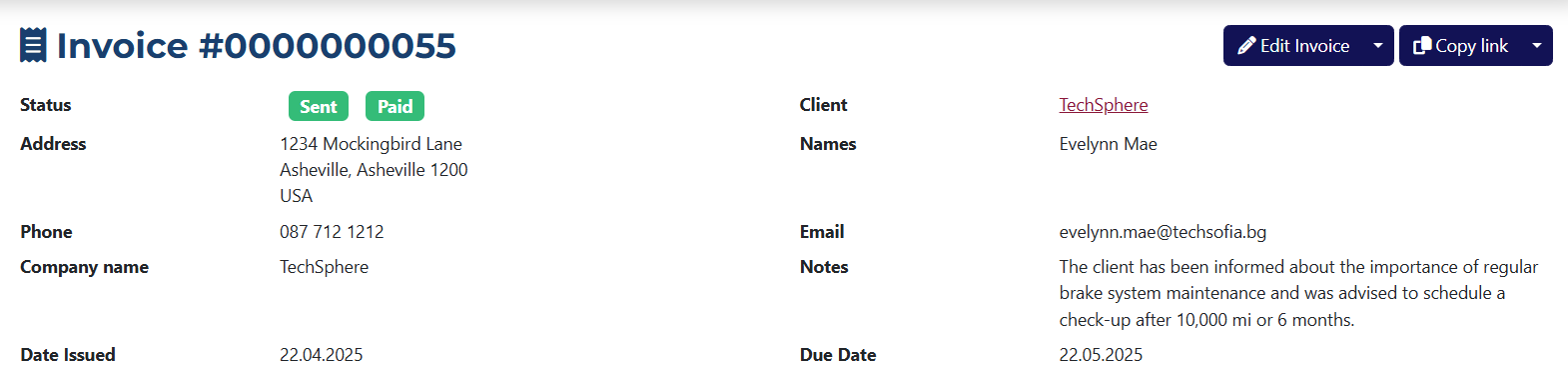
In this section, you can also find the Copy Link button, which includes a dropdown menu for sharing the invoice.

Invoice Line Items
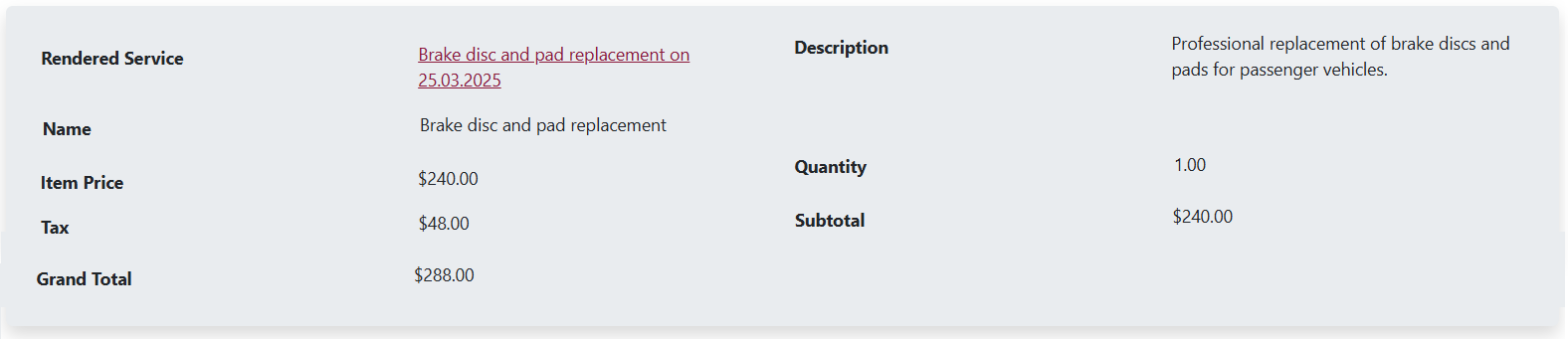
This section shows the content of the invoice. It may include a rendered service, service, or part.
Payment Information
This section contains information about all payments related to the invoice.

If the Amount Received does not cover the Grand Total, the To Be Paid field will show the outstanding balance that still needs to be paid.
📁 Tabs
- Payments
- Emails
- Letters
- Tasks
- Change Log
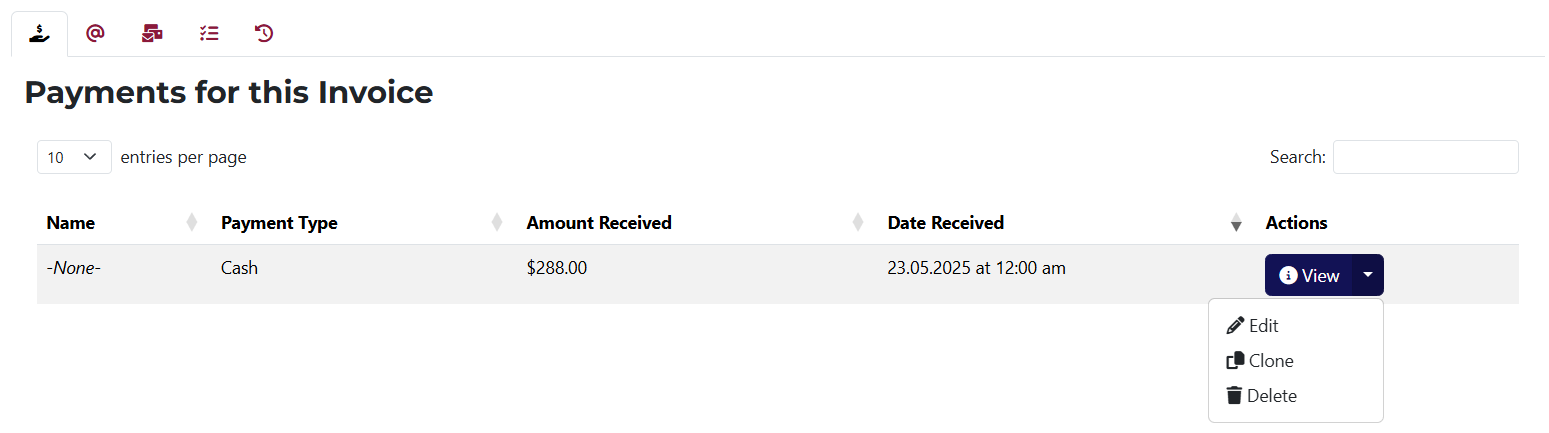
Here you can see all payments related to the invoice you are viewing. You have quick access to view, edit, and delete each payment.
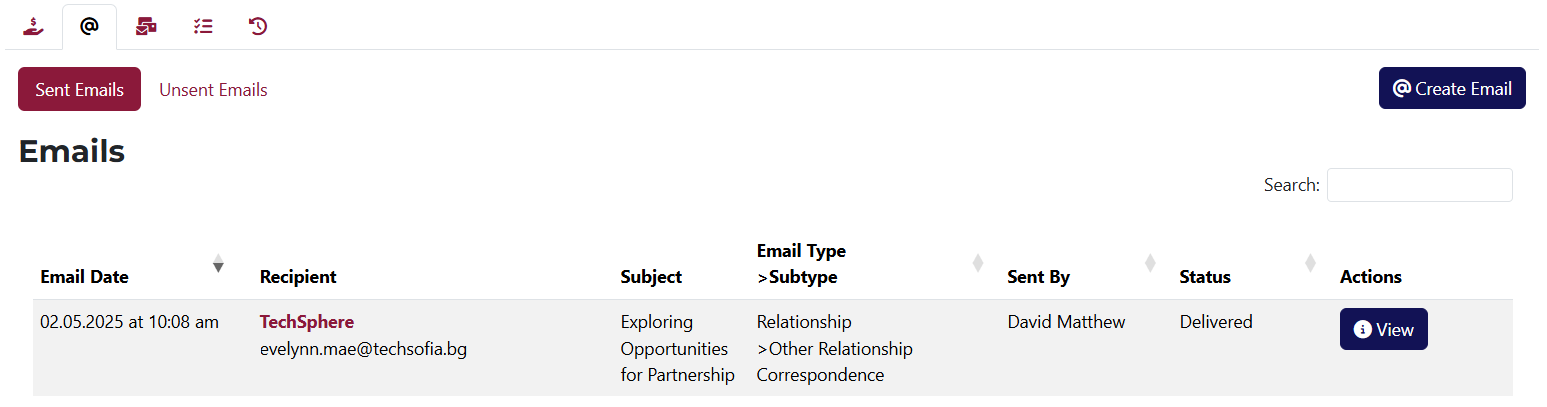
This tab shows all sent and unsent emails related to the invoice. From here, you can also create a new email by clicking the "Create Email" button.
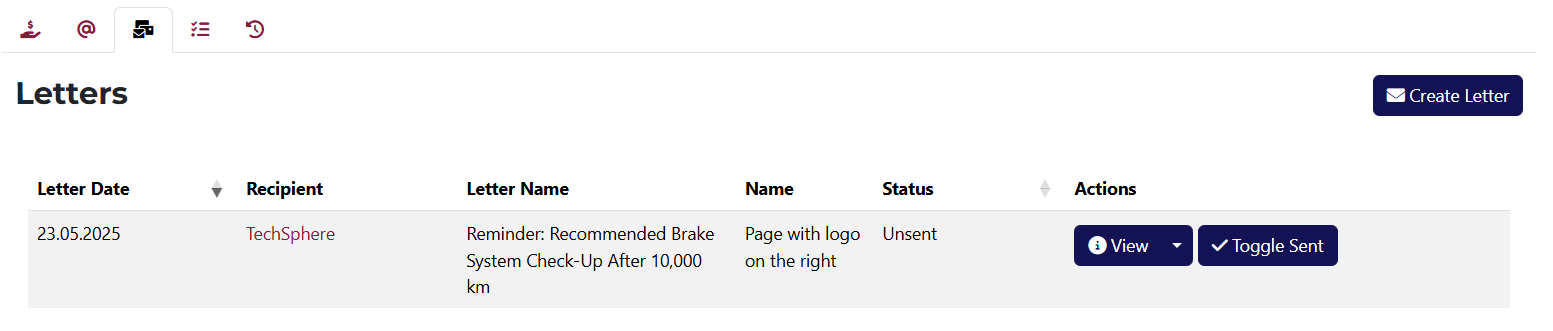
Here you can see all letters linked to the invoice. You can view, edit, delete, and share each letter. You can also create a new letter related to the invoice by clicking the "Create Letter" button.
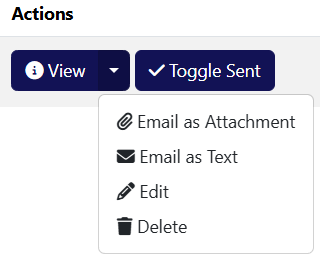
If a letter has the status Unsent, a button to change its status to Mark as Sent will be available.

This tab shows all tasks related to the invoice. You can view, edit, add a task, and delete any task.
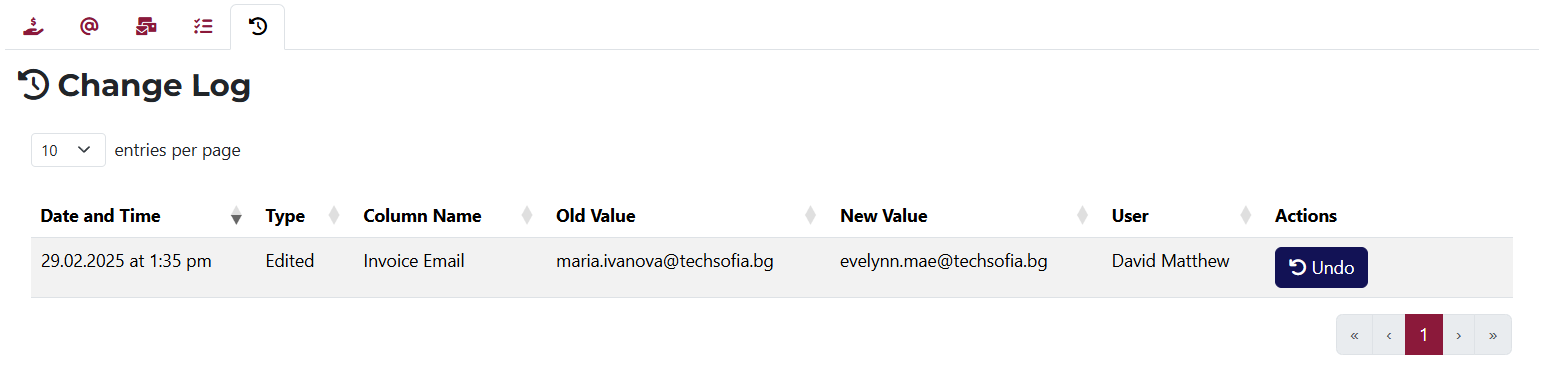
All changes made to the invoice are displayed in this tab.
If a change is reversible, you will see a Undo button in the Actions column.