📃 List
- Tasks
- Task Templates
On this page, you can view all tasks, as well as any available templates you can use to create tasks.
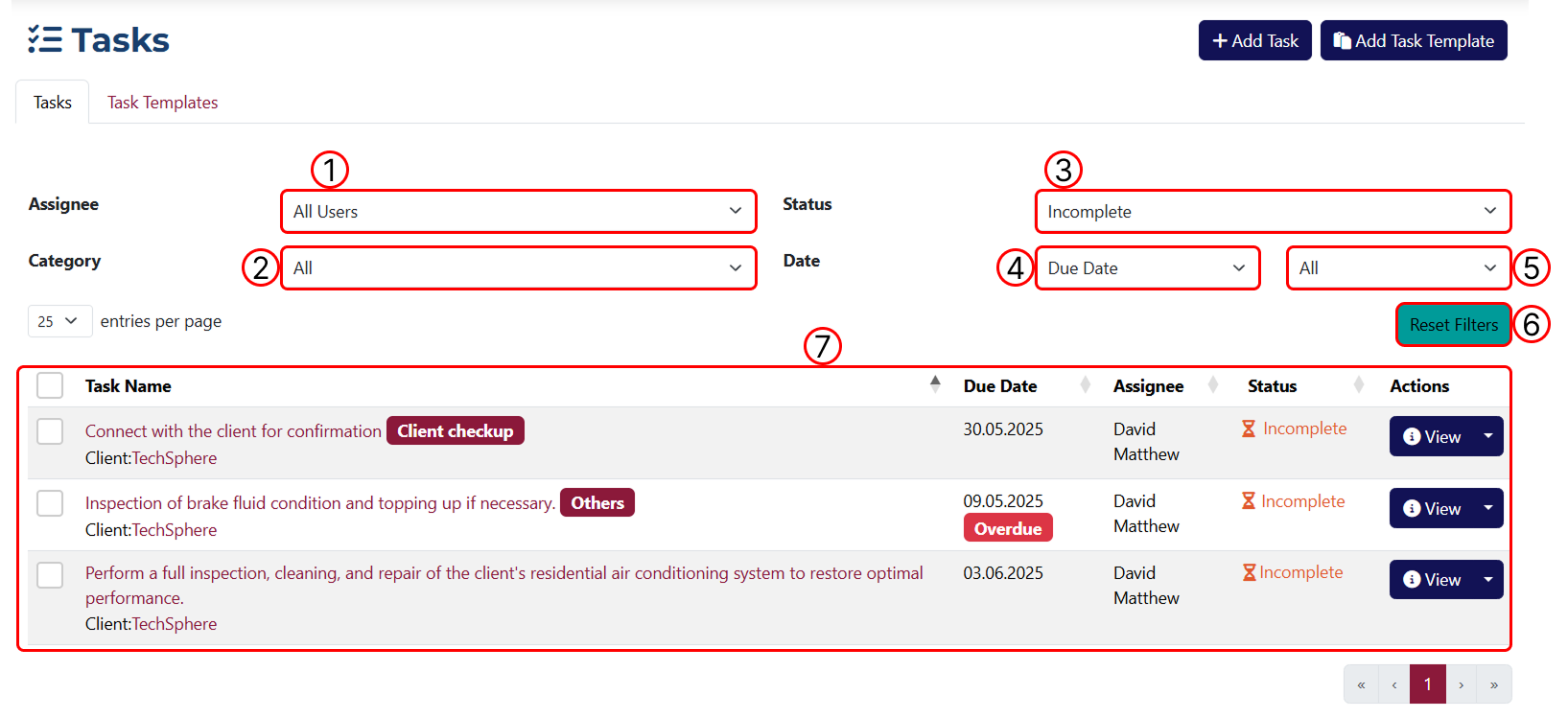
1 Filter results by assignee. All shown tasks will be those assigned to the selected user.
2 Filter results by category.
3 Filter results by status.
4 Use this dropdown to set the date filtering parameters. It includes: Date Completed and Due Date.
5 This dropdown lets you choose a time range to apply the date filter.

6 Button to clear all applied filters.
7 Table showing all results.
With the Custom Range option, you can enter a custom date range, which gives access to two additional fields: start and end date.
Functionality of the Actions button and its available options:

1 Opens the Task Overview page.
2 Opens the Task Edit page.
3 Marks the task as completed.
4 Deletes the task.
You can create tasks based on pre-made templates, allowing you to have pre-filled fields. To view all existing templates, click on the Templates tab.
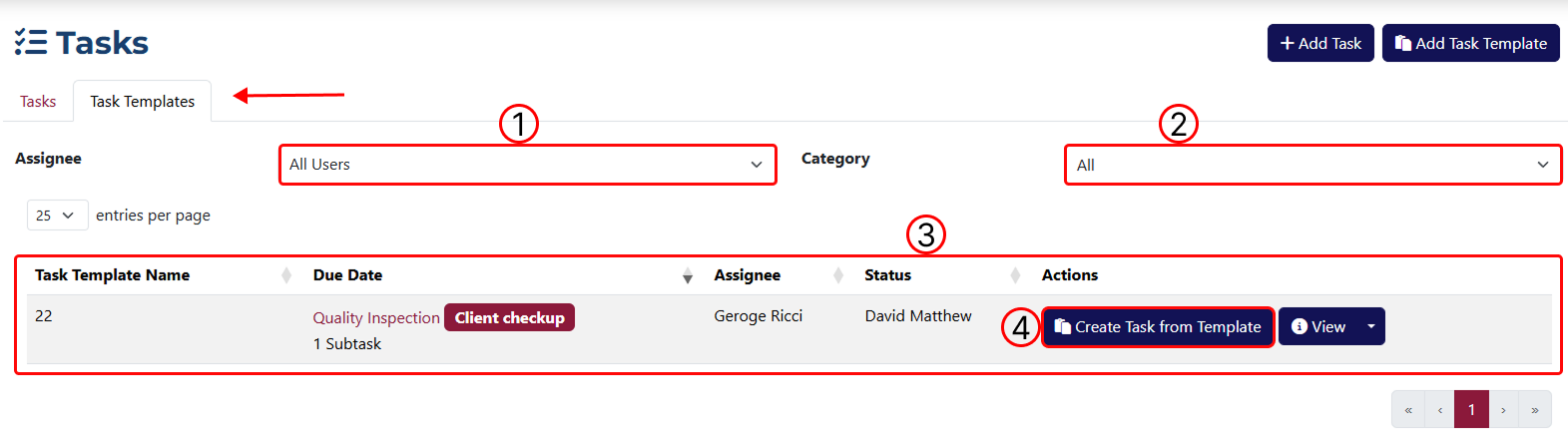
1 Filter results by user. All shown templates are those assigned to the selected user.
2 Filter results by category.
3 Table showing all matching results.
4 Button to create a new task based on a template you've already created.
When you click Create Task From Template, you’ll be redirected to the Add Task page, where the fields you've defined in the template will be automatically filled in.
Functionality of the Actions button and its available options:

1 Opens the Template Overview page.
2 Opens the Edit Template page.
3 Deletes the template.