📃 List
On this page, you will see a list of all system-generated letters, including additional information such as creation date, recipient, letter name, and status.
- Letters
- Templates
- Page Layouts
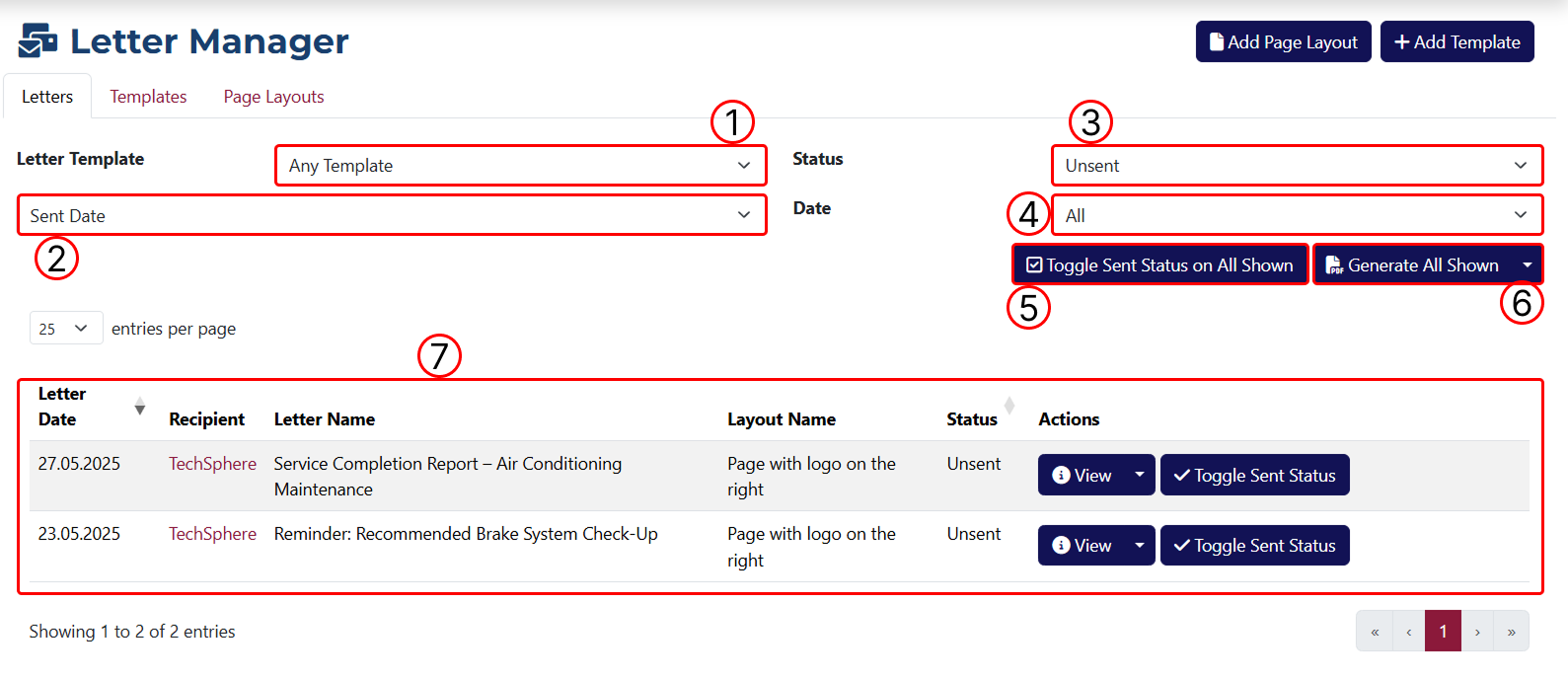
1 Filter results by letter template. This dropdown shows all templates you’ve created.
2 This dropdown has two options: Created Date and Sent Date. It sets the parameter for filtering by date.
3 Filter results by the status of the letter.
4 Filter results by date. You can define a time range for filtering.
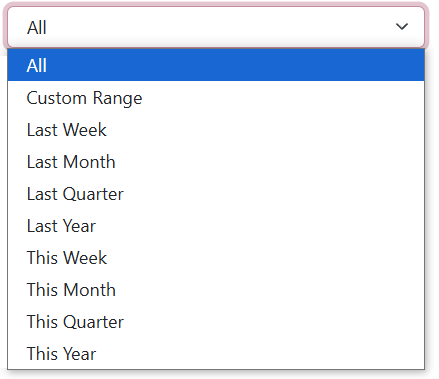
From the Custom Range option, you can enter a custom time range using the two additional fields: start and end date.
5 This button applies a bulk action to change the status of all displayed letters.
6 This button generates all displayed letters in PDF format. The attached dropdown allows you to download them as CSV or XLS.

7 A table displaying all letters generated in the system.
Function of the "Actions" button and its available options:
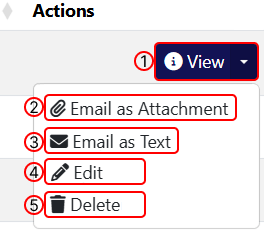
1 Opens the Letter Overview page.
2 Opens the page to create a new email, attaching the letter as a file.
3 Opens the page to create a new email that contains the letter text.
4 Opens the Letter Edit page.
5 Deletes the selected letter. A confirmation dialog will appear to confirm or cancel the deletion.
You can access the letter templates tab by clicking Templates at the top of the page.
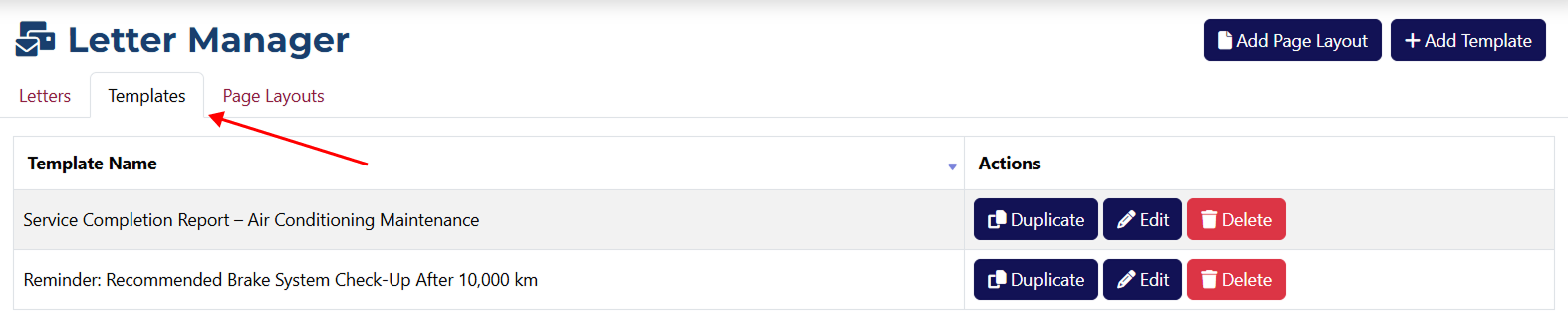
Here, you can view all the templates you've created and also edit, duplicate, or delete them. These templates are used to generate letters so you don’t have to fill in all fields again.
After clicking Layouts next to the Templates tab at the top of the page, you’ll see all the layouts you’ve added to the system.
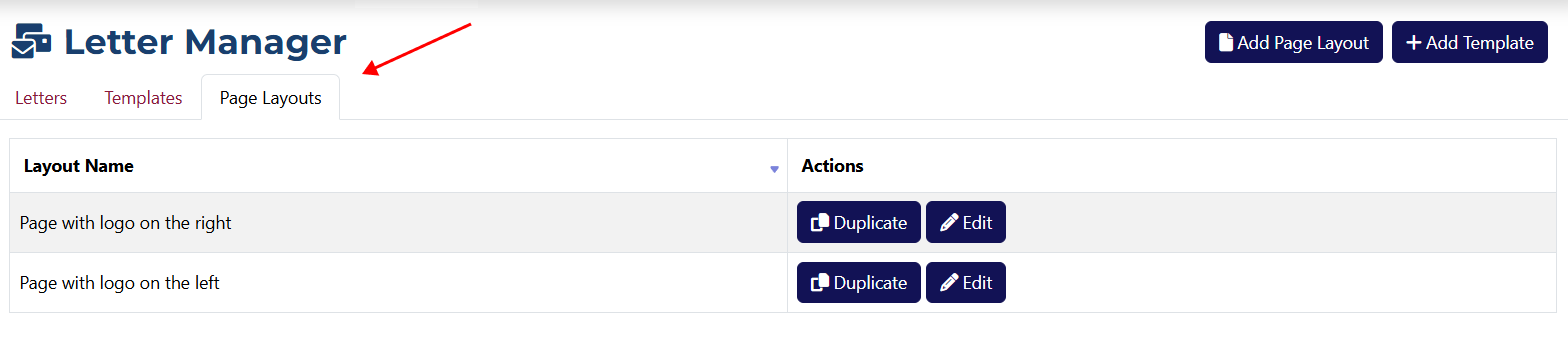
Layouts define the visual structure and styling of the letters. In this section, you can edit, duplicate, or delete them.