➕ Add
You can access the invoice creation page by clicking the Create Invoice button in the top right corner of the Invoices page.
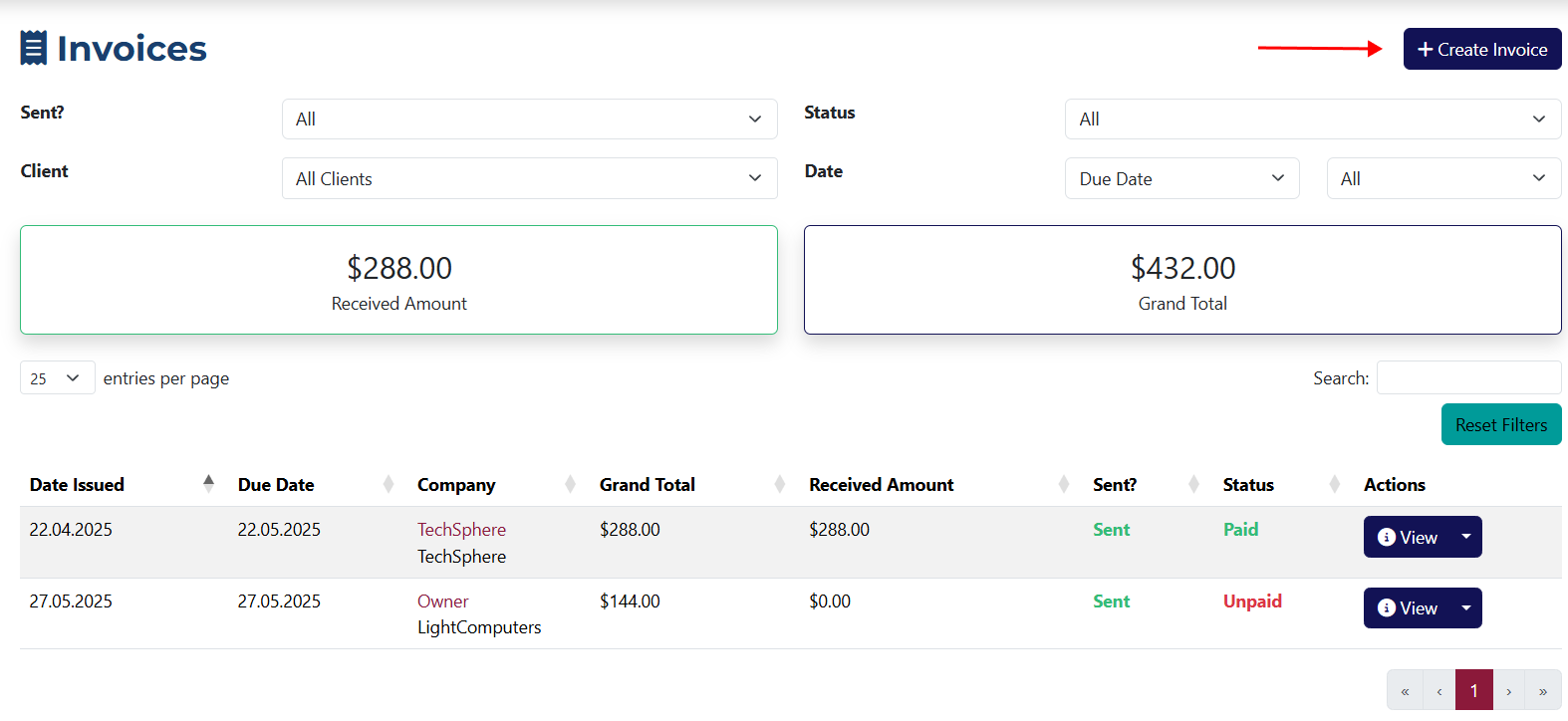
On this page, you can add a new invoice for a client, and include a part, service, or rendered service.
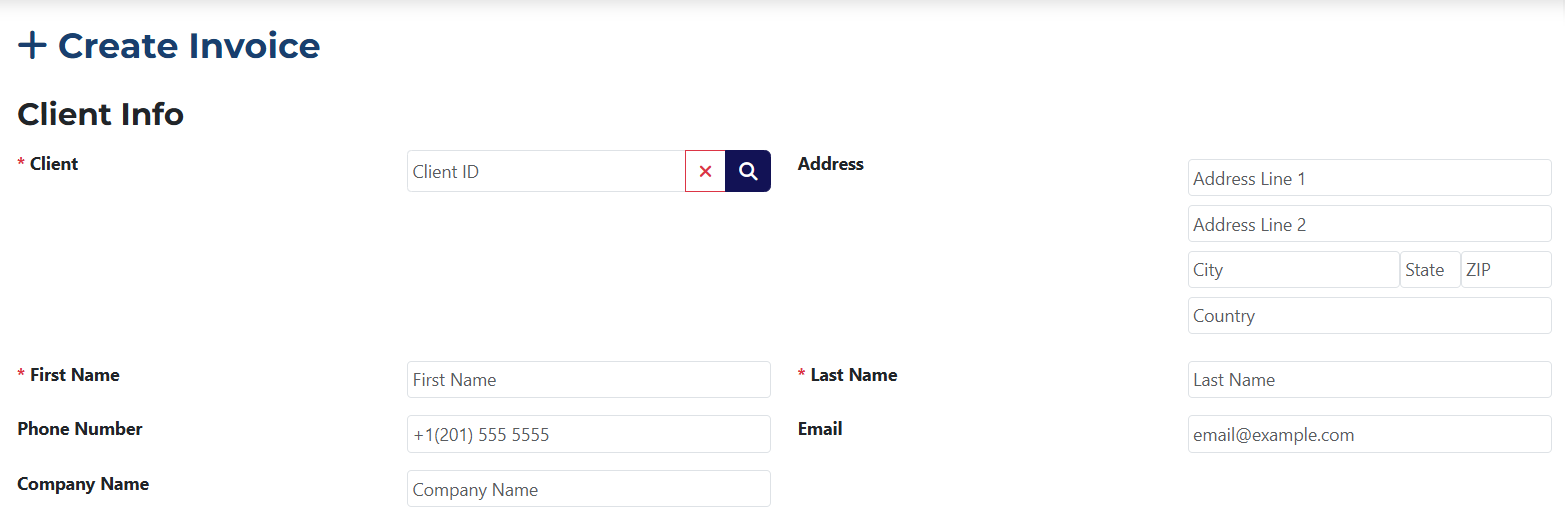
If you want to create an invoice for an existing client, click on the 🔍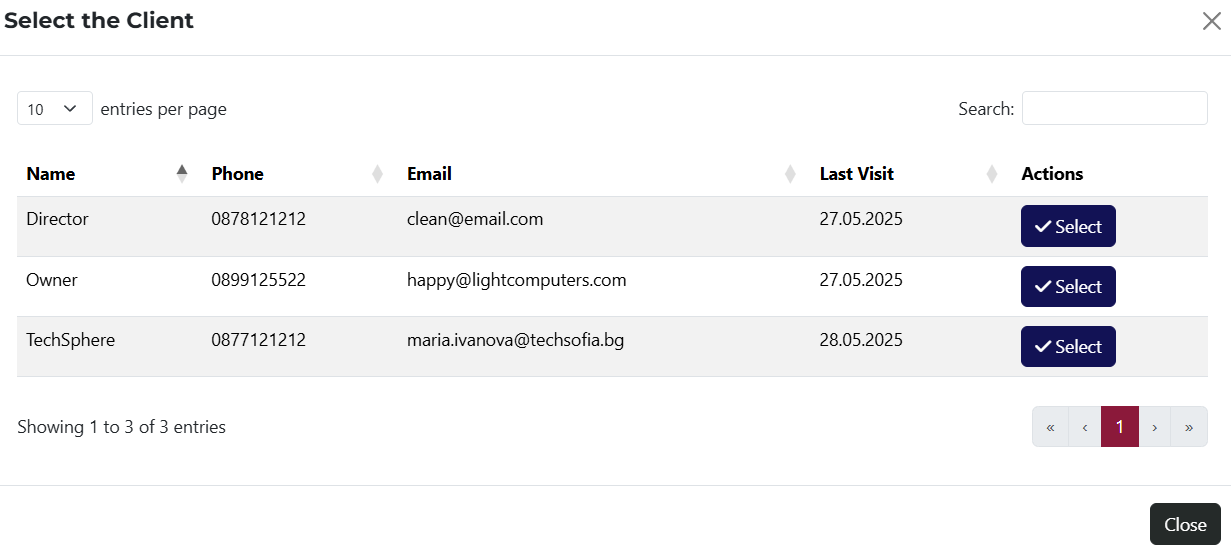 to open a list of all clients in the system. Selecting a client will automatically populate their personal details into the form. If you'd rather not choose an existing client, or want to create an invoice for a new client without adding them to the system, you can manually enter their information.
If you change the data of an existing client here, the changes won't apply to their actual profile.

This section includes the following fields:
- Sent? – dropdown menu to set the invoice status. Options: Sent or Unsent.
- Due Date* – required field where you must set the payment deadline.
- Show Payment Info – a radio button that allows you to show bank payment details on the invoice.
- Date Issued* – required field for the invoice issue date. It defaults to today's date but can be changed.
- Expected Payment Type* – dropdown menu with all available payment methods, which can be managed in the system settings.

- Invoice Number* – this field will be automatically filled but can be edited if needed.
All fields marked with an asterisk * are required.
Add Line Item
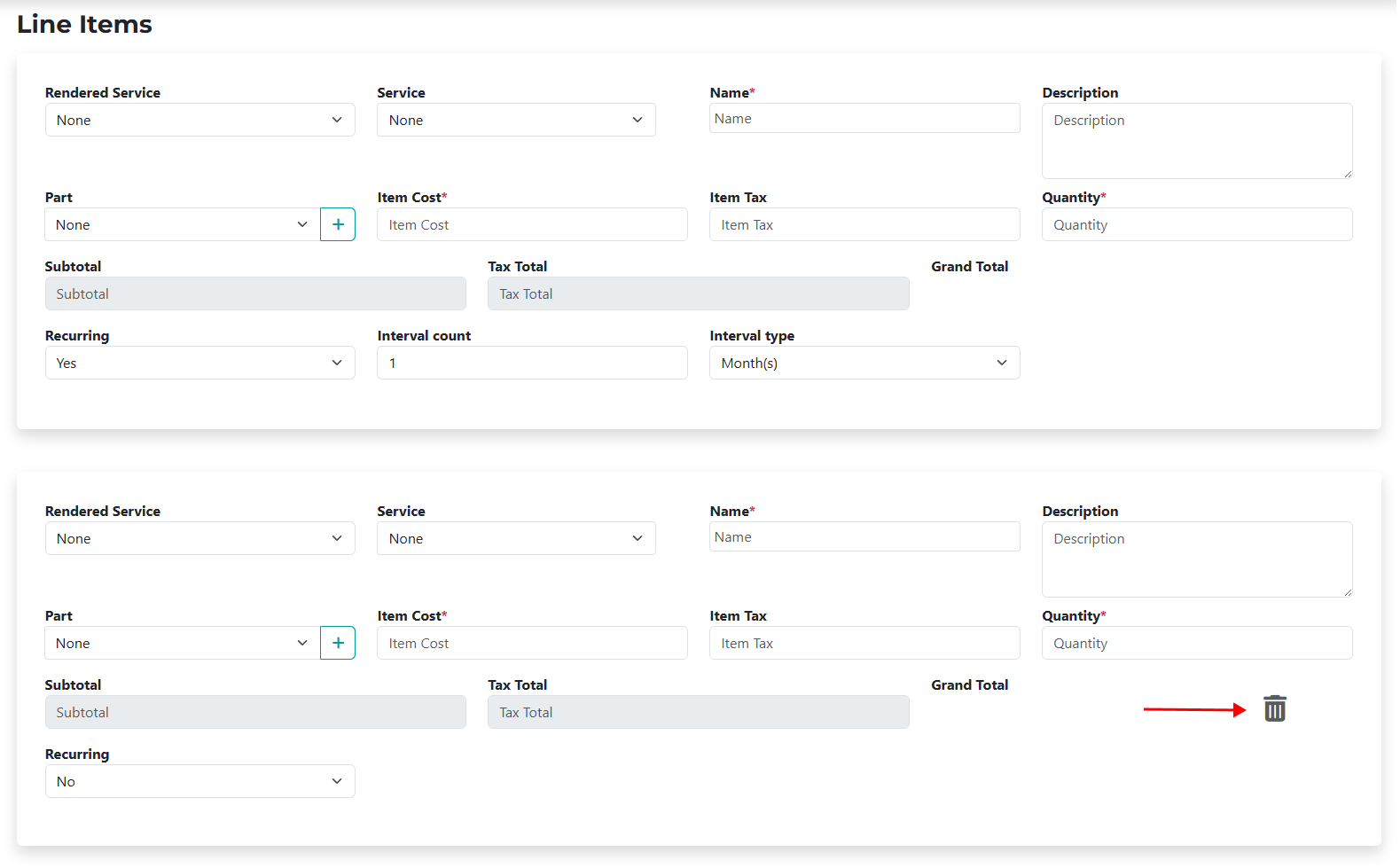
Use this section to add line items to your invoice—services, rendered services, or parts.
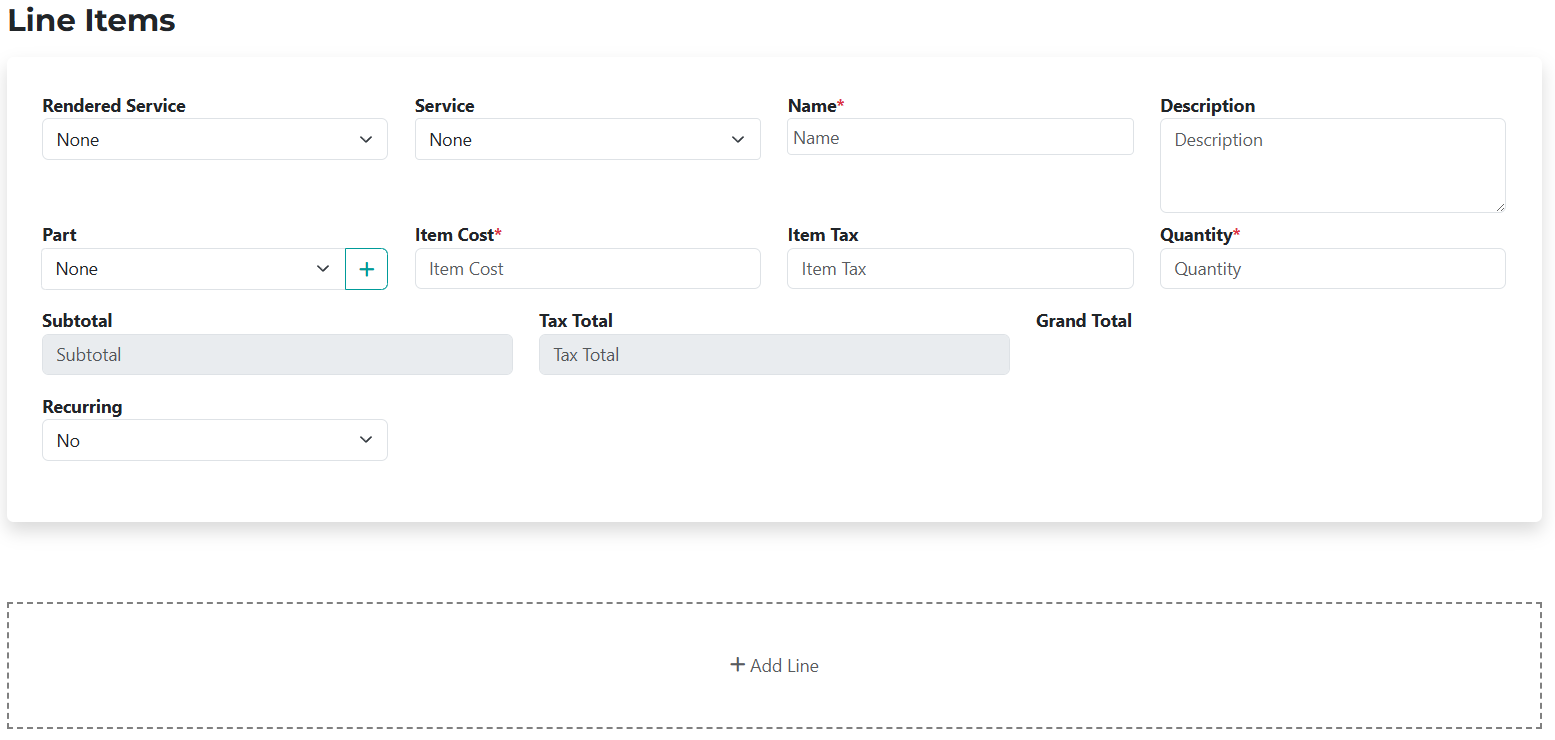
- Rendered Service – dropdown menu showing all rendered services linked to the selected client.
- Service – dropdown to select a service to add to the invoice.
- Name* – required field that will autofill based on your selection, but you can edit it.
- Description – will also autofill, but can be edited or left blank.
- Part – dropdown with all available parts in the system.
- Item Cost* – required field. Automatically filled but editable. Changes apply only to this invoice.
- Item Tax – this field updates automatically based on default settings but can be changed or left empty.
- Quantity – defaults to 1 but can be changed.
- Subtotal – non-editable field showing the total net amount for this line item.
- Tax Total – non-editable field showing the total VAT.
- Recurring – dropdown menu to set if the invoice will repeat periodically. If you select Yes, you’ll be able to define how many times and the interval (e.g., weekly, monthly).

Add Additional Items

- Add Line – use this button to add more line items. A new form will appear with an option to remove it:

- Notes – an optional text area where you can leave comments or special notes about the purchase.
Calculations and Payments
This section shows real-time invoice totals based on the items added.
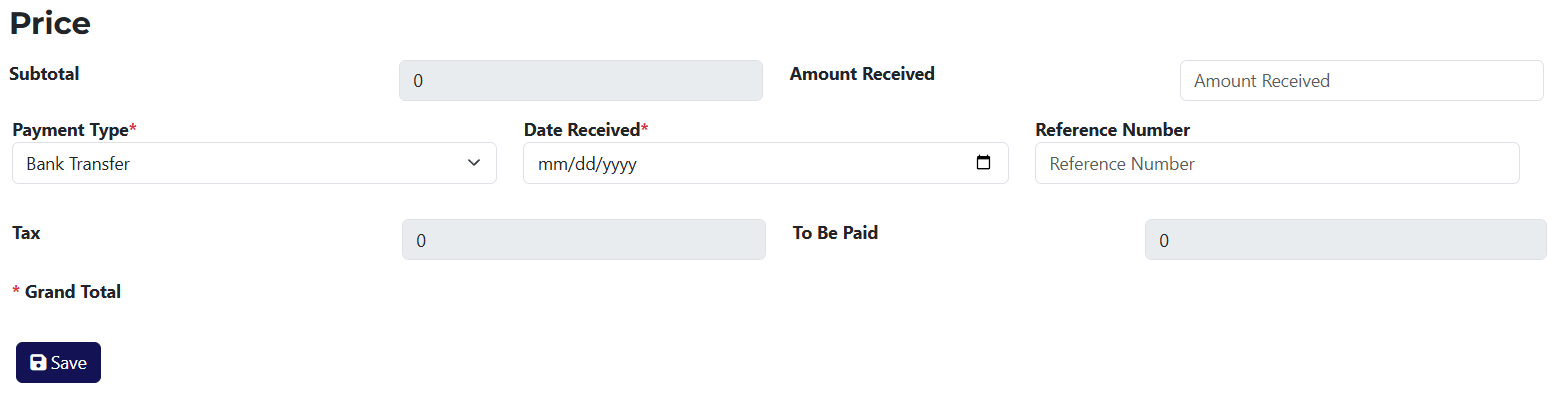
Read-only fields:
- Subtotal – shows the total net amount.
- Tax – shows the total VAT amount.
- Grand Total – total invoice amount.
- To Be Paid – shows the remaining balance to be paid before the invoice can be marked as Paid.
Payment fields:
- Amount Received – enter the payment amount received. Once filled, more fields will appear for adding payment details.
- Payment Type* – required dropdown to select the payment method.
- Date Received* – required field for the payment date.
- Reference Number – optional field to enter the payment reference number.