📃 List
This page displays a list of all recorded purchases. You can filter the records by client, status, and date. The data table provides an overview of purchases with a focus on key details and their current status.
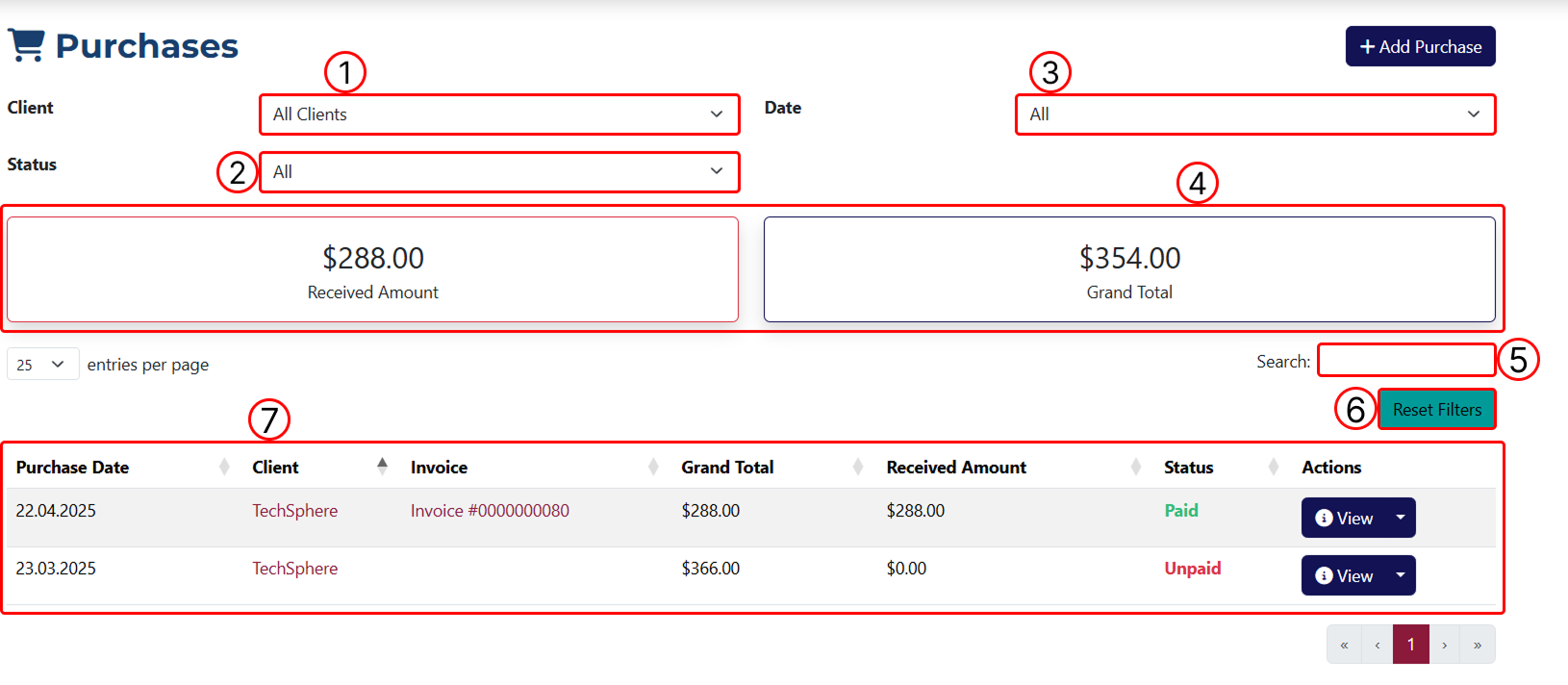
1 Filter results by a client registered in the system.
2 Filter results by payment status.
3 Filter results by time period. This dropdown allows you to choose from the following options:
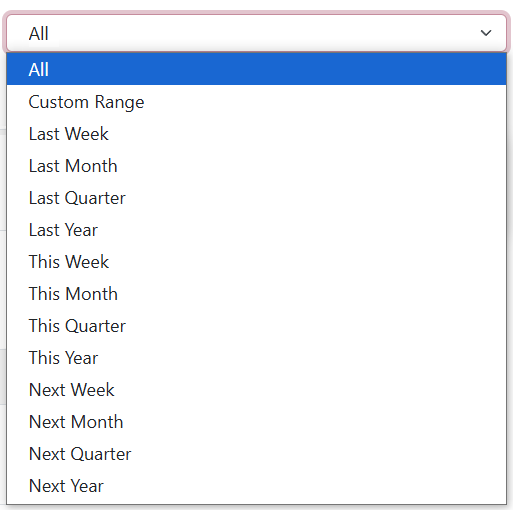
The Custom Range option will display two additional fields where you can manually enter a starting and ending date.
4 Received and Total amounts, updated dynamically.
5 Filter the shown results by keyword.
6 Remove all applied filters.
7 A data table displaying all recorded purchases.
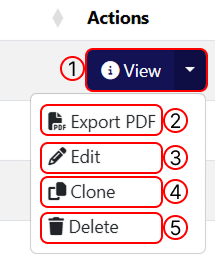
1 Opens the Purchase Overview page.
2 Redirects to a page with a generated PDF file containing the purchase details.
3 Opens the Purchase Edit page.
4 Allows you to create a duplicate of the purchase via the duplicate page.
5 Option to Delete the purchase.
If you open the dropdown menu for an unpaid purchase, you will also see the option to mark as paid. A popup window will appear, allowing you to add a payment.