📃 List
This page displays all recorded expenses—along with their categories, amounts, and descriptions. You can use it to monitor and track all business-related expenses, helping you maintain clear and organized financial records.
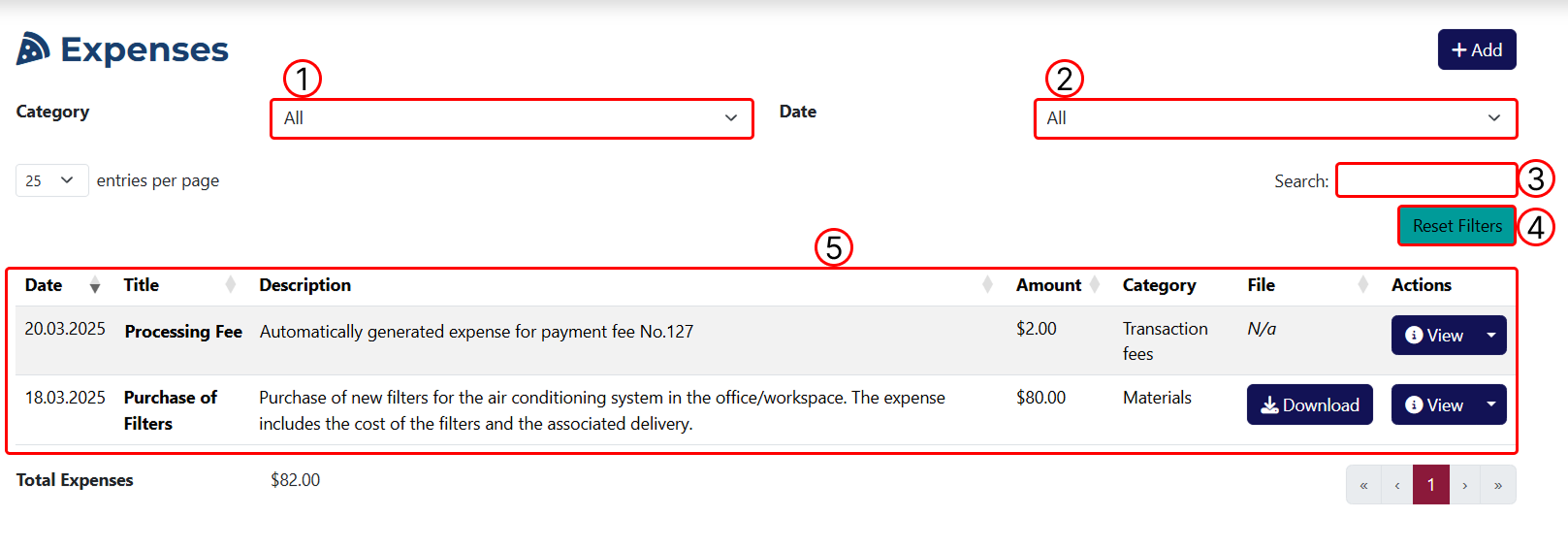
1 Use this dropdown to filter the results by category.
2 Use this dropdown to filter the results by date.
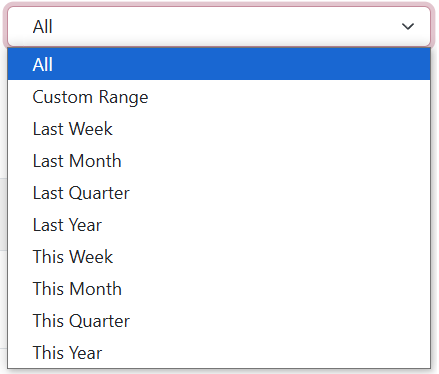
By choosing Custom Range, you’ll be able to define a custom time range using the start and end date fields that appear.
3 Enter a keyword here to filter results based on it.
4 You can reset all applied filters by clicking on this button.
5 This table displays all recorded expenses, both before and after filters are applied.

1 Opens the Expense Overview page.
2 Opens the Expense Edit page.
3 Lets you create a duplicate of the selected expense.
4 Allows you to delete the expense. A confirmation dialog will appear to avoid accidental deletions.
The Download button is only visible if a file is attached to the expense. You can use this button to download the file to your device.