📃 List
This page allows you to manage and track issued invoices with the ability to filter by different criteria. The table provides information related to invoices, including details about the issue date, deadlines, amounts, and current status.
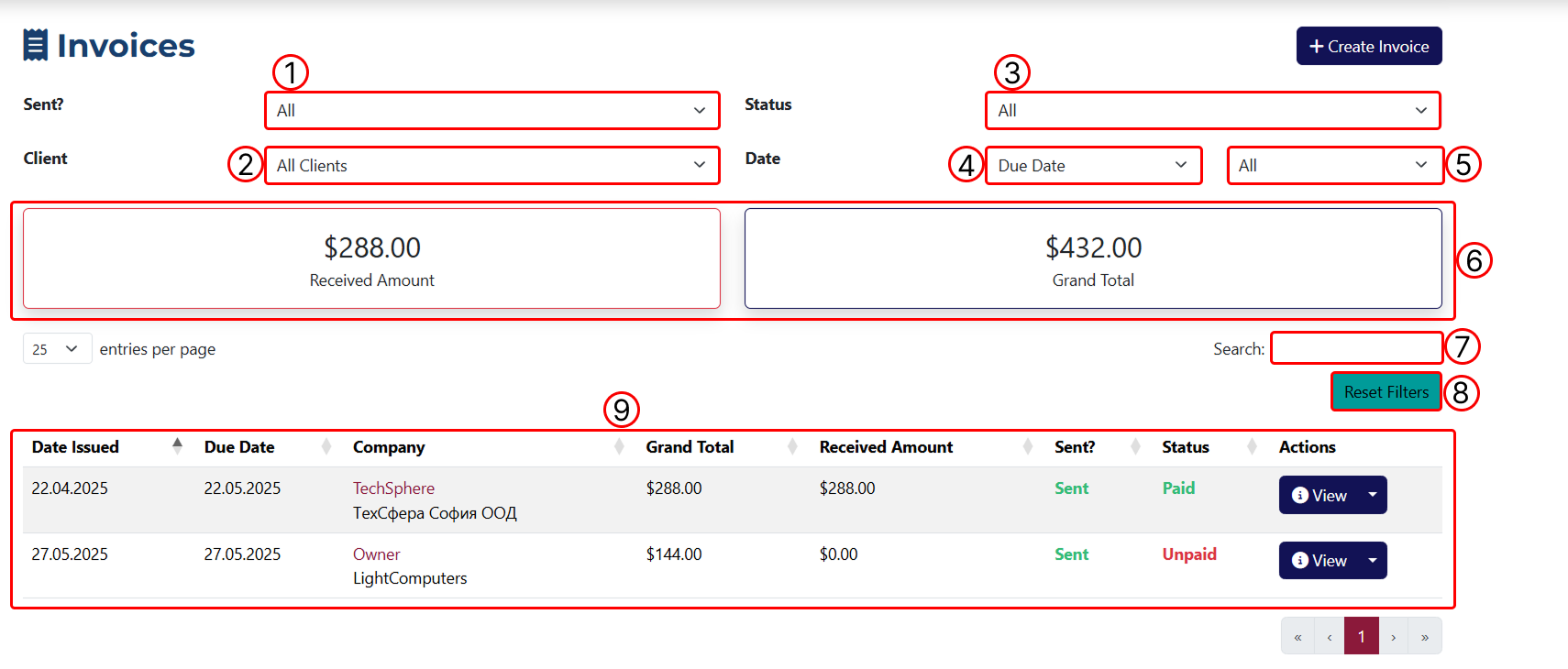
1 This dropdown menu allows you to filter results by delivery status.
2 This dropdown contains all the clients you’ve added to the system. The results will be limited to invoices related to the selected client.
3 This dropdown lets you filter by payment status.
4 From this dropdown you can set the date filtering parameters, it includes: Date Issued and Due Date.
5 From here you can select a time period to apply the filtering.
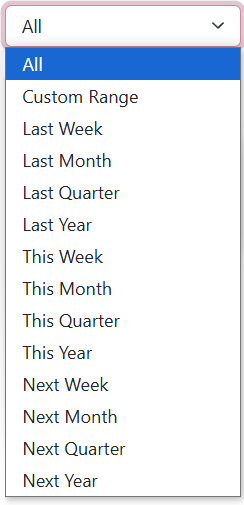
The Custom Range option allows you to enter a custom date range by providing a start and end date.
6 Values for received and total amount, which update dynamically based on the selected filters.
7 A field to filter results by keyword. You can enter a keyword to apply filtering based on it.
8 Using this button, you can remove all applied filters.
9 A table showing all generated invoices.
If you have an overdue invoice, a tag labeled Overdue will be shown next to it. This tag appears in the invoice list and on the invoice overview page.
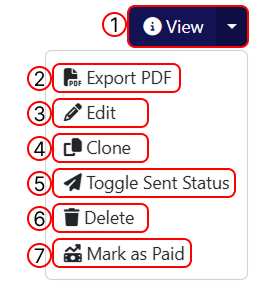
1 Opens the Invoice Overview.
2 This button allows you to generate the invoice in PDF format.
3 Opens the Invoice Edit page.
4 This button lets you create a duplicate of the invoice.
5 Allows you to change the status of the invoice.
6 This button allows you to delete the invoice. After clicking it, a popup will appear asking you to confirm or cancel the deletion.
7 This button allows you to add a payment to the invoice and update its status. After clicking, a popup will open where you can enter the payment info.
The option Mark As Paid will only be visible if the invoice has an Unpaid status.