👁️ Overview
- Tasks
- Task Templates
On this page, you'll see detailed information about the selected task.
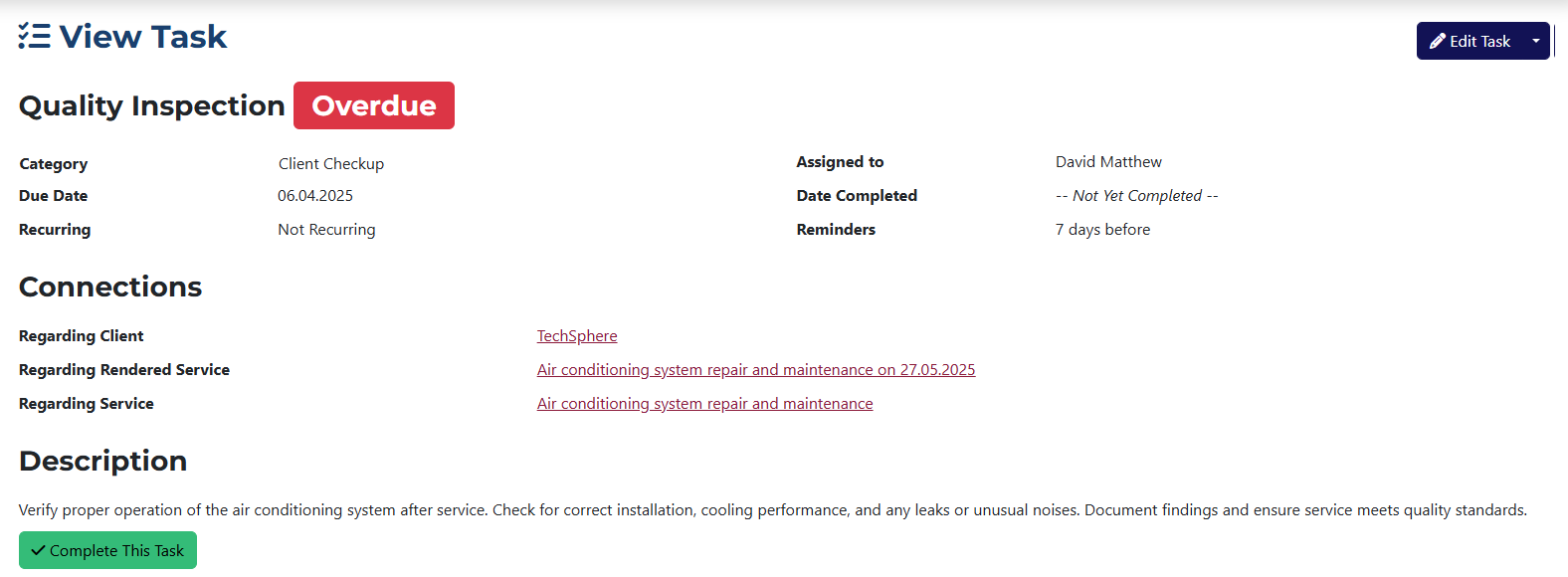
You’ll be able to view:
- Category – the category assigned to the task.
- Assigned to – the user this task is assigned to.
- Due Date – the deadline for completing the task.
- Date Completed – if the task has been completed, the exact completion date will appear here.
- Recurring – shows whether the task is set to repeat, along with the repeat interval.
- Reminders – lists when reminders were sent to the assigned user.
- Regarding Client – shows the client associated with the task.
- Regarding Rendered Service – if the task is linked to a rendered service, you’ll see its name here.
- Regarding Service – if the task is linked to a service, its name will be displayed here.
- Description – the task’s description.
- Complete This Task – a button to mark the task as done. After clicking it, you’ll be able to add a comment which will be logged in the task history.
If you open a completed task, the Complete This Task button won’t be shown.
📁 Task Tabs
- Subtasks
- Attached Files
- Change Log
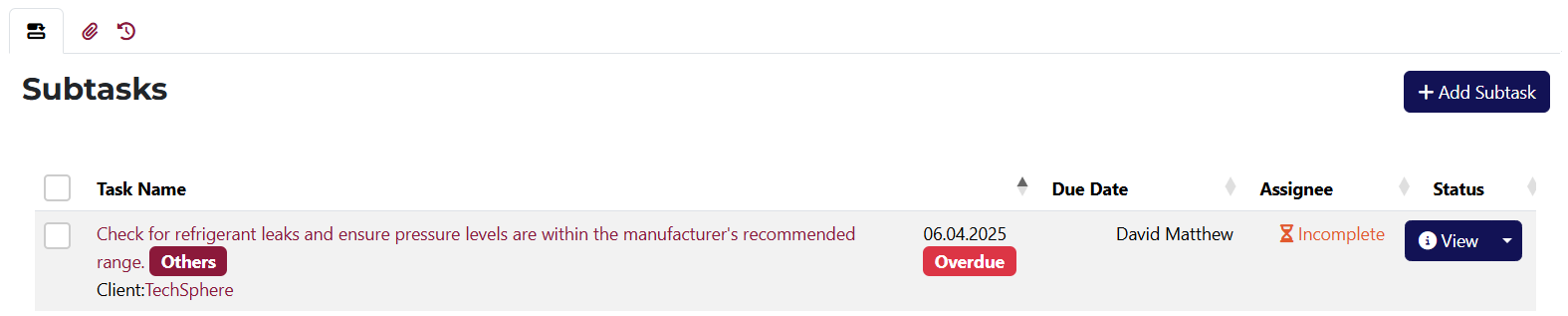
This tab shows all subtasks related to the task you’re viewing.
You also have buttons for view, edit, create template, mark as completed, and delete.

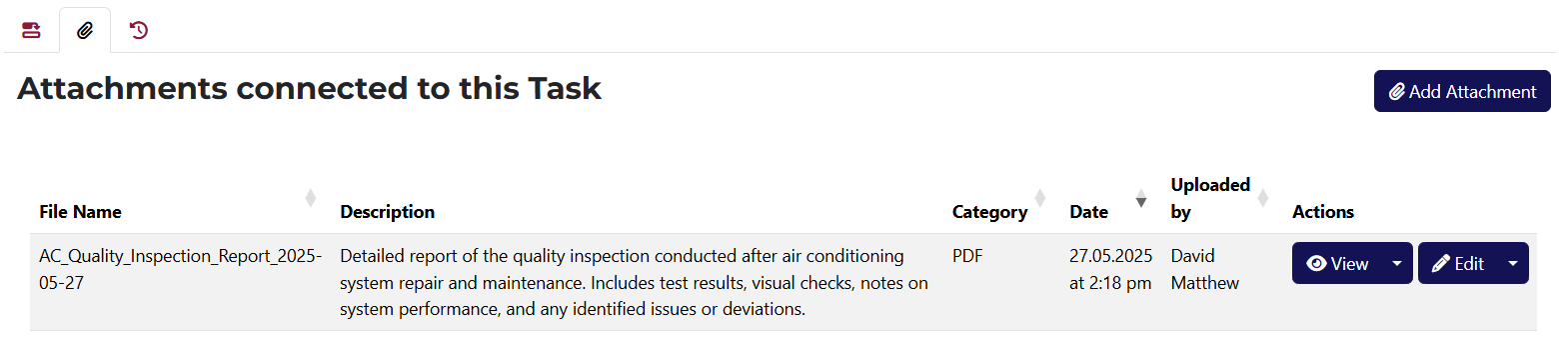
This tab lists all files associated with the task. You can view files (if they are in image or PDF format), download, edit, or delete them.
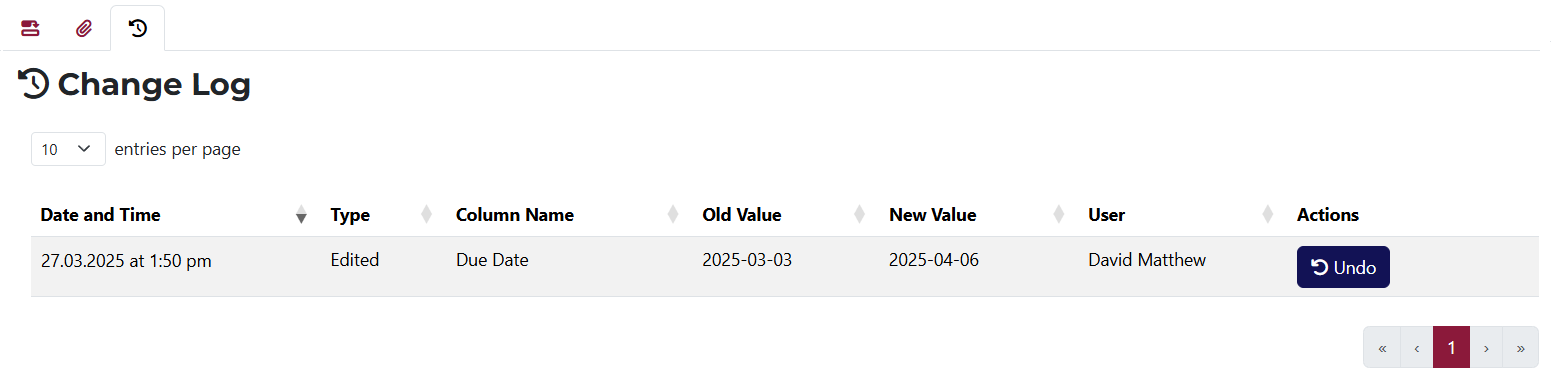
This tab displays the full change history for the task.
If any action is reversible, you’ll see a Undo button in the Actions column.
This page displays detailed information about the template you’re viewing.
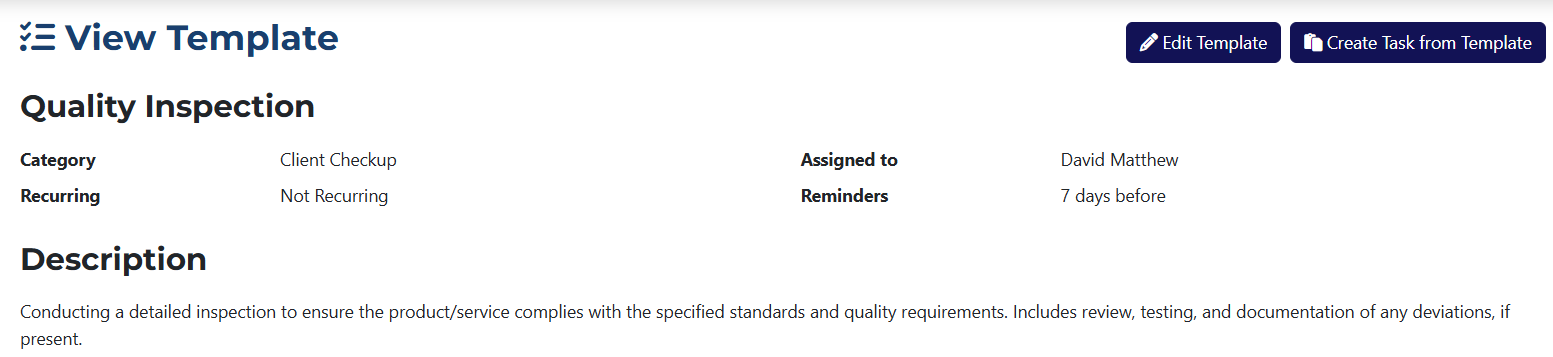
The following data is shown:
- Category – the category assigned to the template.
- Assigned to – the user this template is assigned to.
- Recurring – whether the template is set to repeat, and the repeat interval.
- Reminders – shows when reminders were sent to the assigned user.
- Description – the description of the template.
You’ll also find action buttons for:
- Edit template – opens the page to modify the template.
- Create Task from Template – opens the task creation page with pre-filled fields based on this template.
📁 Template Tabs
- Subtasks
- Change Log

This tab shows all subtasks related to the template.
You’ll have buttons for view, edit, mark as completed, and delete.

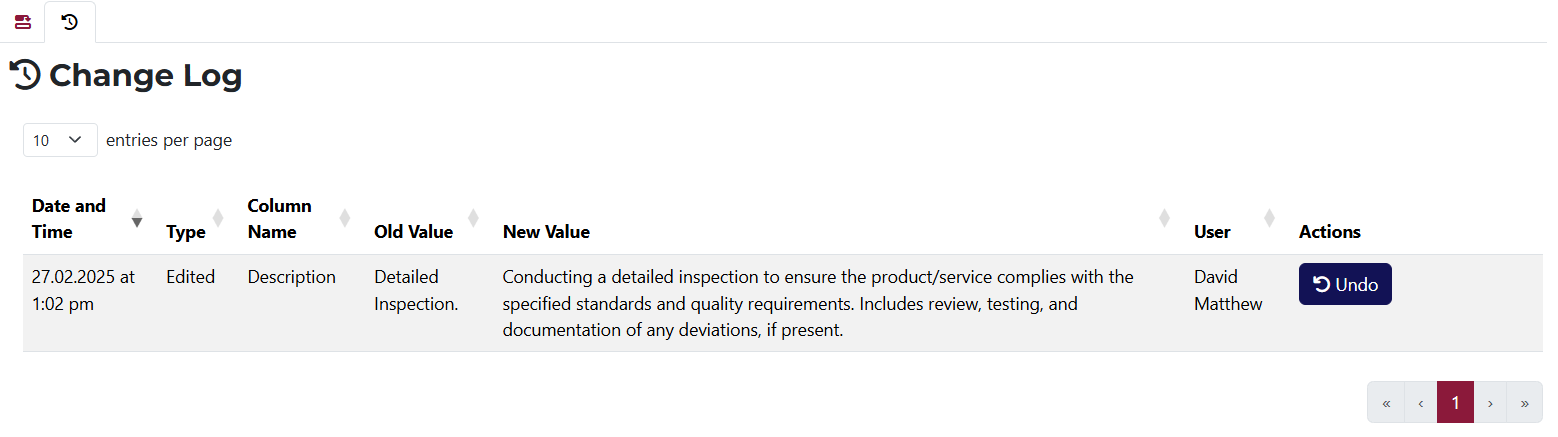
This tab shows the full change history related to the template.
If any action is reversible, you’ll see a Undo button in the Actions column.