➕ Add
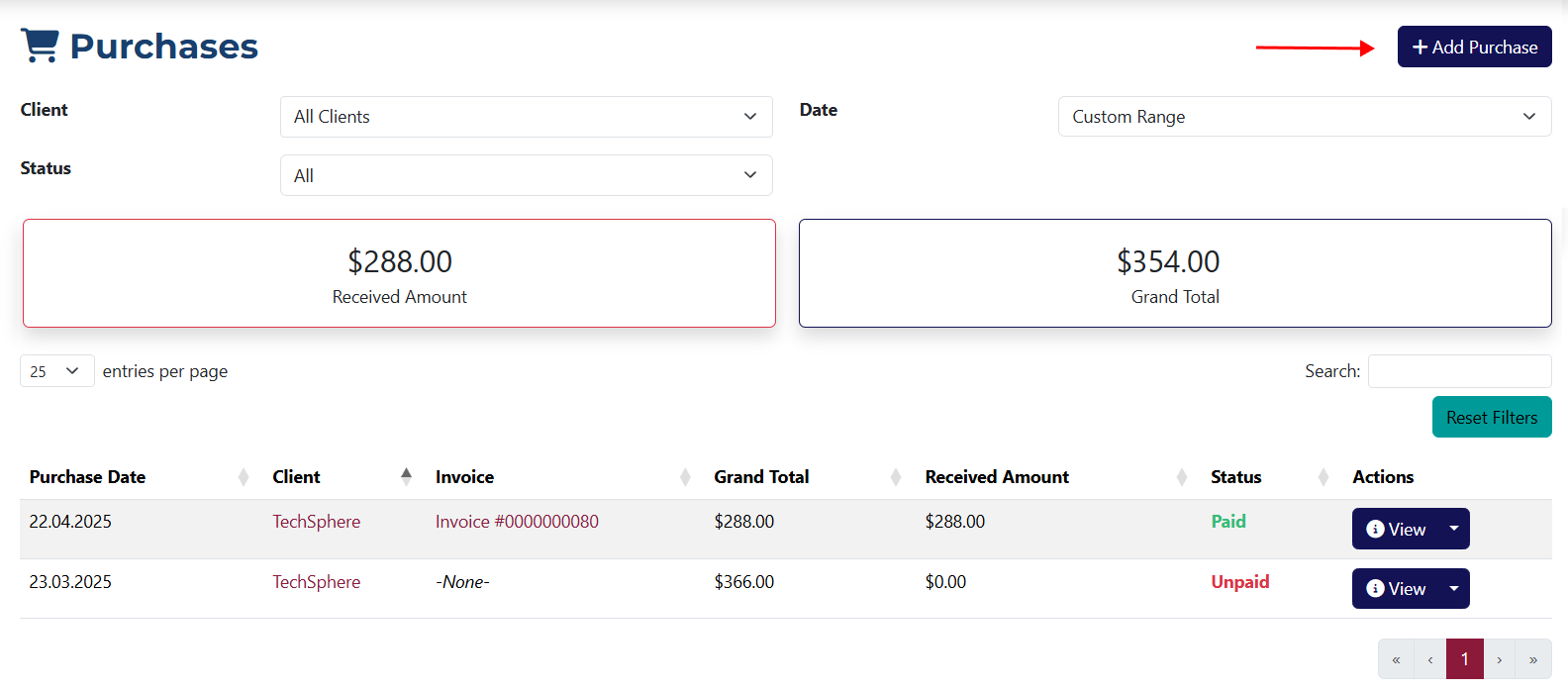
You can access this page by clicking the Add Purchase button on the Purchases List page.
This page allows you to create a purchase for a client, including selecting a part, a service, or a rendered service, as well as specifying the purchase date.
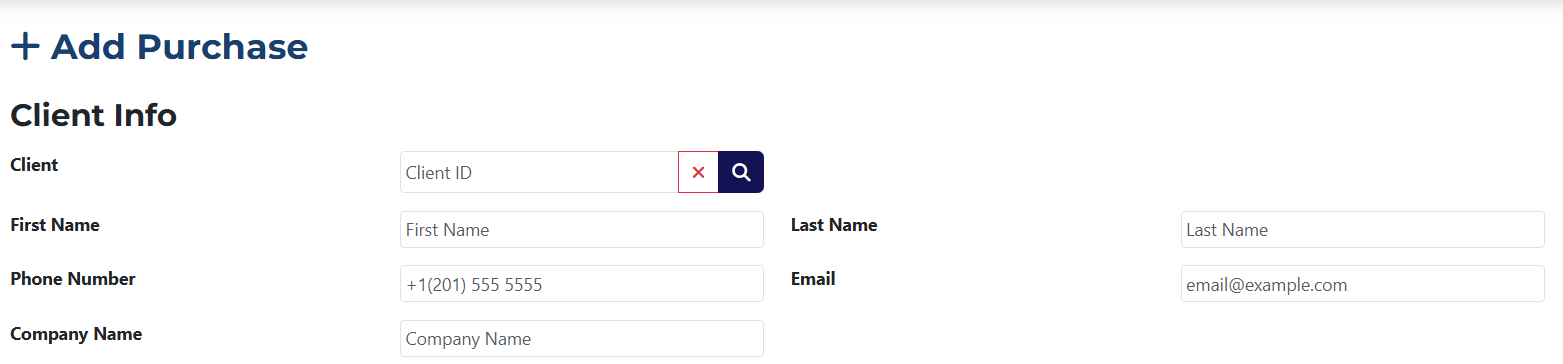
If you want to add the purchase to an existing client, click 🔍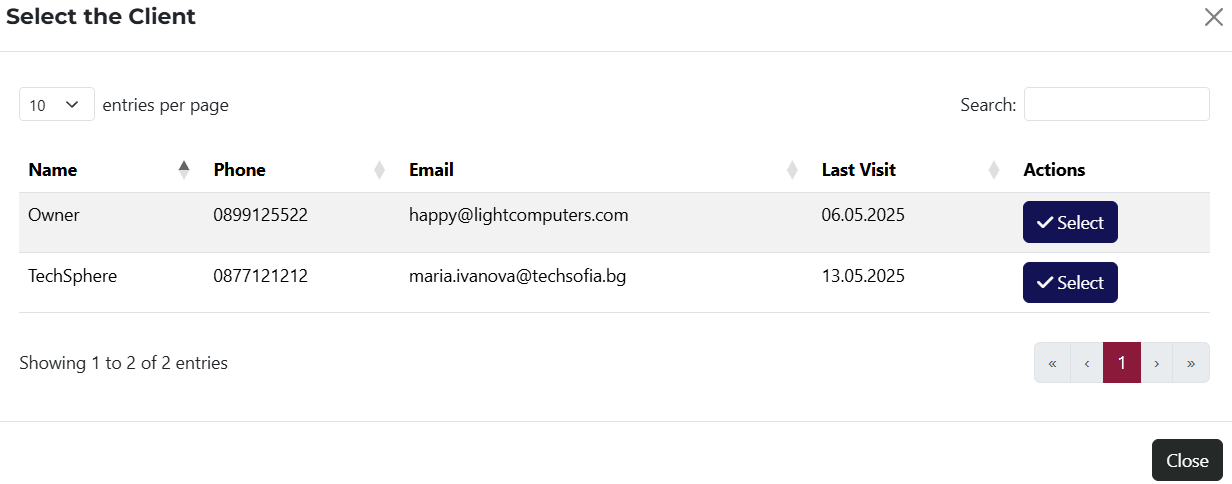 to open a window listing all clients in the system. Once selected, the client's personal details will be auto-filled in the form.
If you're adding a purchase for a new client without creating their profile, you can manually enter their details.
Any changes you make to the personal details of an existing client on this page will not be reflected in their profile.

In this section, you must select the purchase date and the expected payment type from the dropdown.

The Expected Payment Type field is auto-filled based on the system’s default value. You can add or edit the options in the system settings under the Lists tab.
Adding a Line Item
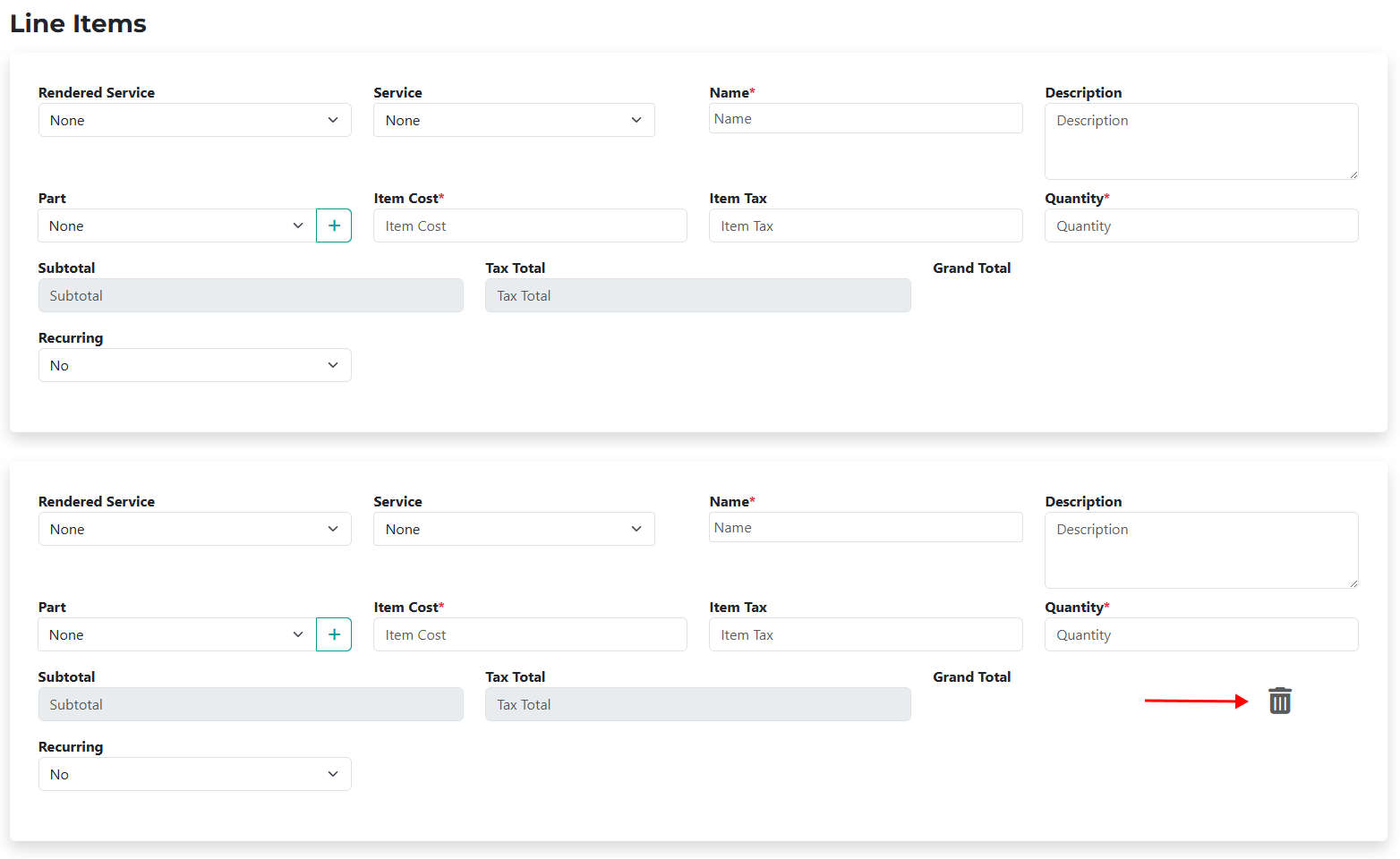
This section allows you to define the components of the purchase – Service, Rendered Service, or a Part.
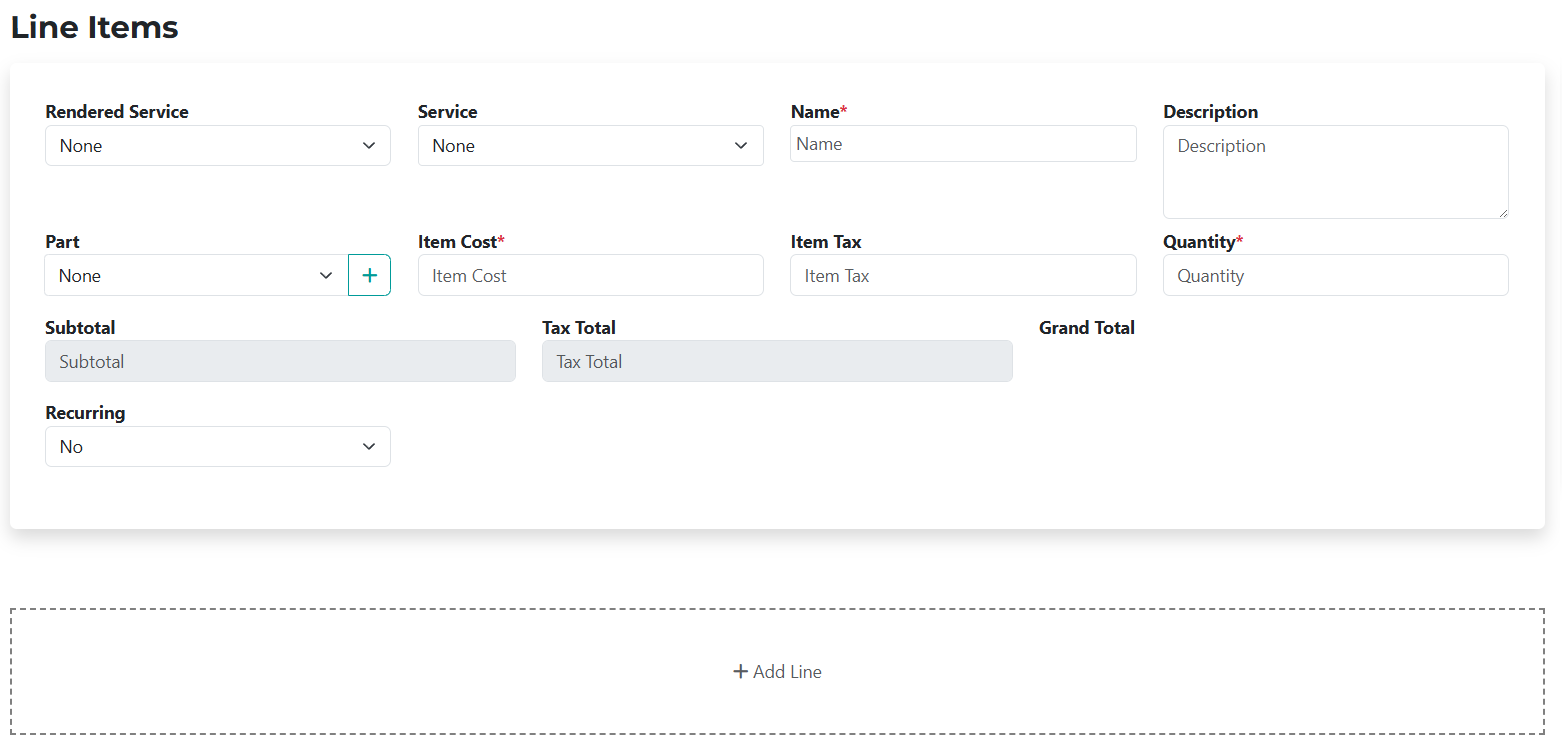
All fields marked with * are required.
- Rendered Service – dropdown containing rendered services related to the selected existing client.
- Service – choose a predefined service from the dropdown list.
- Name* – required field for the item name. It is auto-filled based on your selection but can be edited.
- Description – auto-filled with default text, optional and editable.
- Part – dropdown displaying with all parts added in the system.
- Item Cost* – required field. Auto-filled when you select a rendered service, service, or part, but can be edited for this specific purchase.
- Item Tax – calculated based on the system's default VAT setting. Also optional and editable.
- Quantity – defaults to 1 but can be changed.
- Subtotal – read-only field showing the total net amount for the item.
- Tax Total – read-only field showing the total VAT amount for the item.
- Recurring – dropdown to specify if the purchase should repeat. If you select Yes, you'll be able to configure the number of repetitions and the recurrence interval:

Adding Additional Line Items

- Add Line – click this button to add more components to the purchase. A new line item form will appear, including a delete option:

- Notes – an optional text area where you can leave comments or special notes about the purchase.
Calculation and Payment
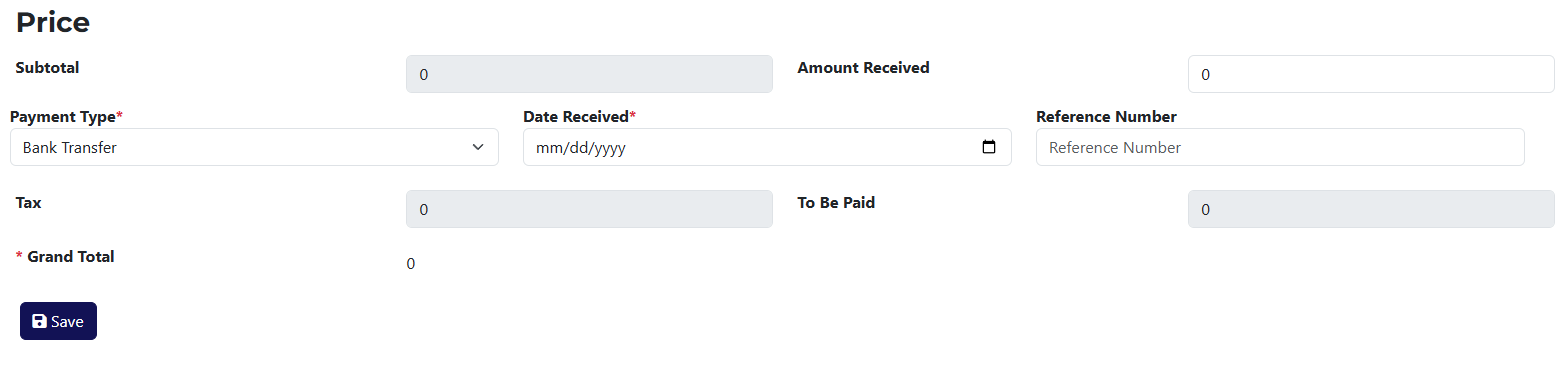
This section dynamically shows the total values based on the added components.
Read-only fields:
- Subtotal – shows the accumulated net total for the purchase.
- Tax – shows the accumulated VAT amount.
- To Be Paid – the remaining amount due for the purchase to be marked as Paid.
- Grand Total – total value of the purchase including VAT.
Payment Entry fields:
- Amount Received – enter the payment received for this purchase. Once a value is entered, additional payment fields will appear.
- Payment Type* – required dropdown to select the type of payment.
- Date Received* – required field to specify the date of payment.
- Reference Number – optional field for entering the payment reference number.