⚙️ Settings
- Lists
- Tags
- System Settings
- Custom Fields
- Modules
- Third-Party Integrations
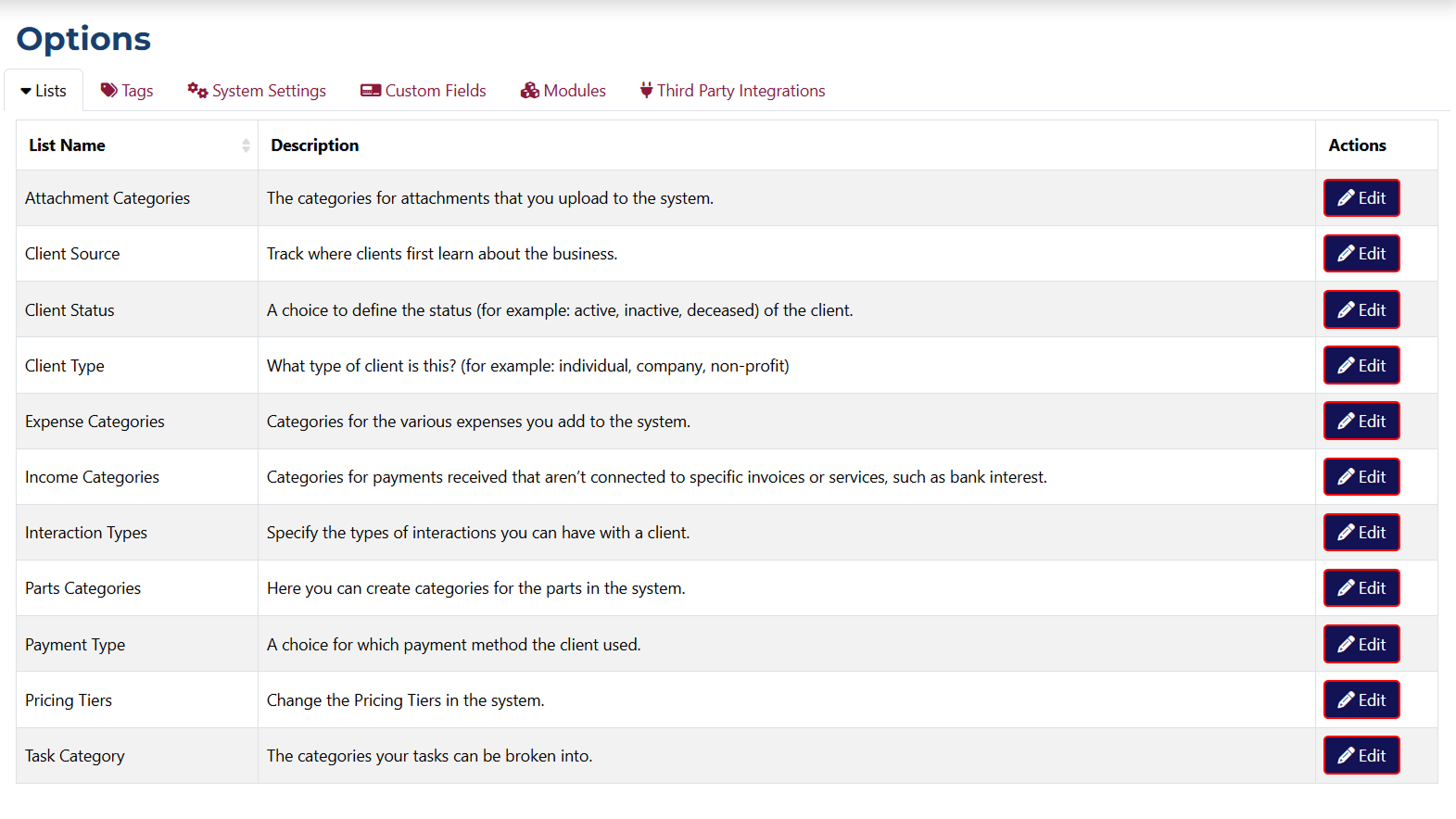
This section displays a list of all dropdown menus in the system. Each menu can be edited using the Edit button located in the Actions column for each row in the table.
Each dropdown menu has its own page, where you can add and edit options.
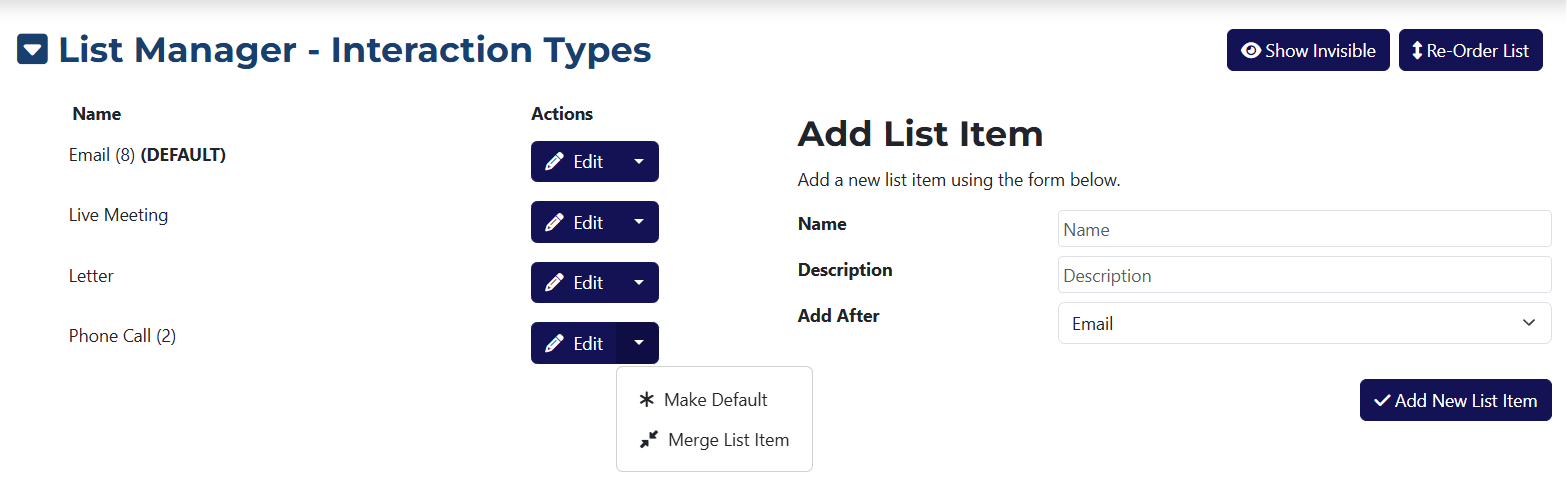
This page includes:
- Name – the name of the dropdown menu.
- Actions – options to edit, set as default, or merge options.
- Show Invisible – displays all options marked as hidden when editing an option.
- Re-Order Options – lets you change the order in which the options appear.
Adding a new option:
- Name – the name of the new option.
- Description – a short description of the option.
- Add After – choose after which existing option the new one should appear.
Merging options removes the unused one and redirects all database references to the remaining one.
On this page, you can view all the tags that have been added to the system. You can edit or delete them, or click Add Tag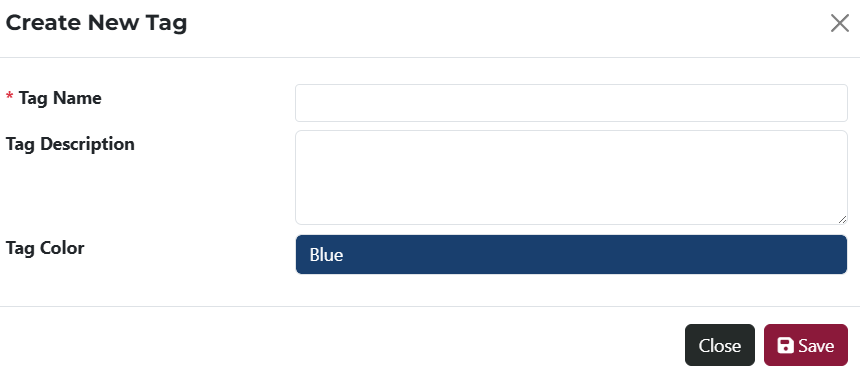 to open a popup window and add a new tag.
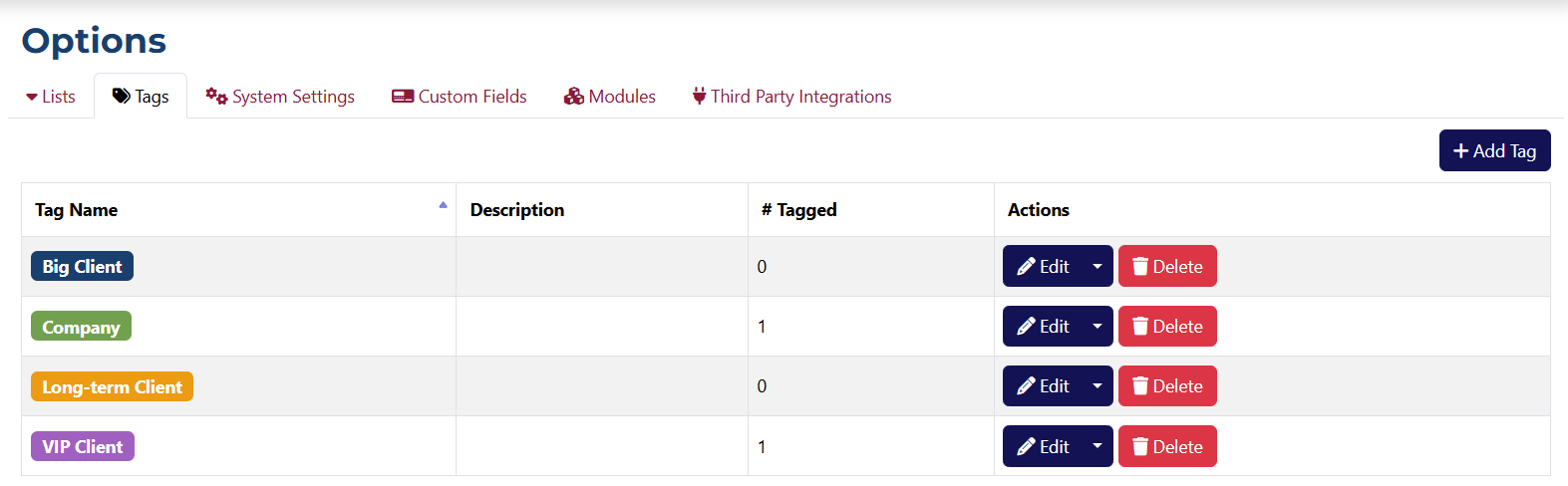
Deleting a tag is an irreversible action! You will be asked to confirm that you truly want to delete the tag and didn’t click the button by accident.
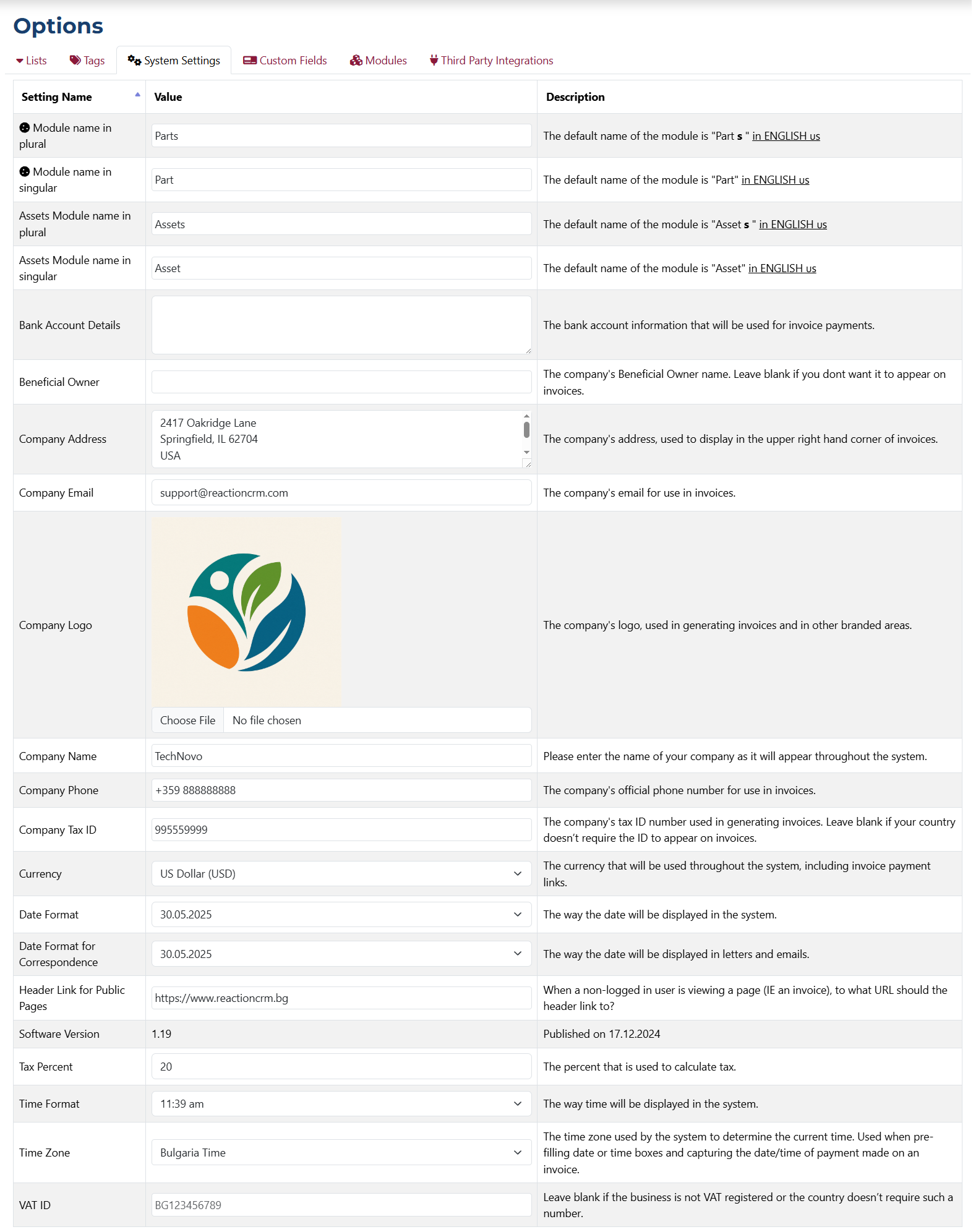
This page shows all configurable system settings, along with a description for each one.
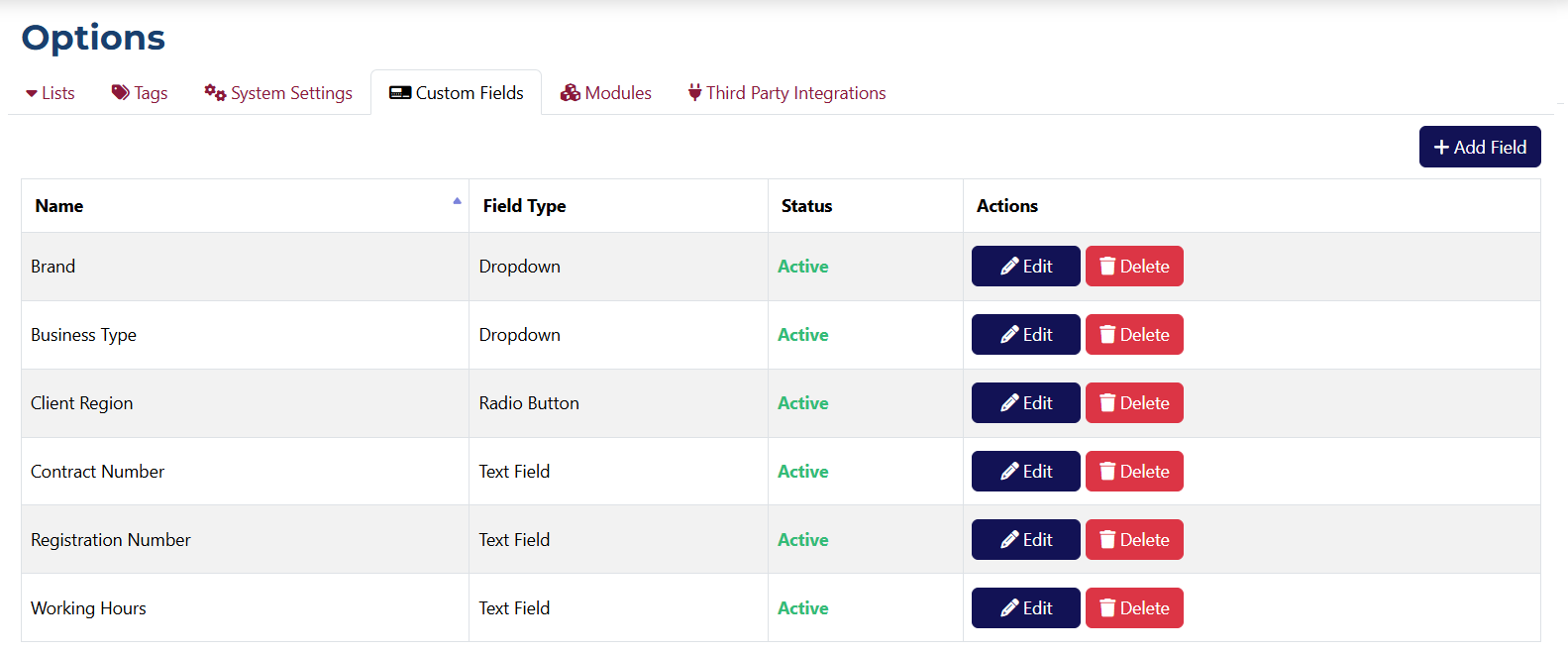
This page lists all custom fields added to the system. You can add, edit, or delete them.
When you click Add Field the following popup will appear:
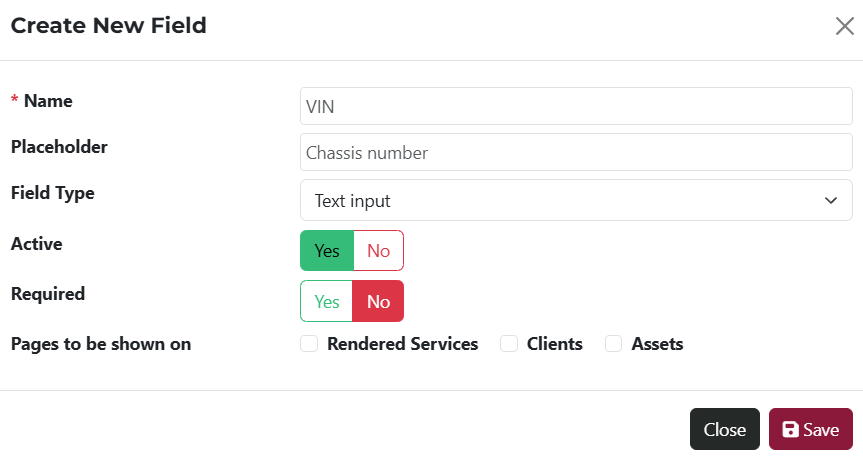
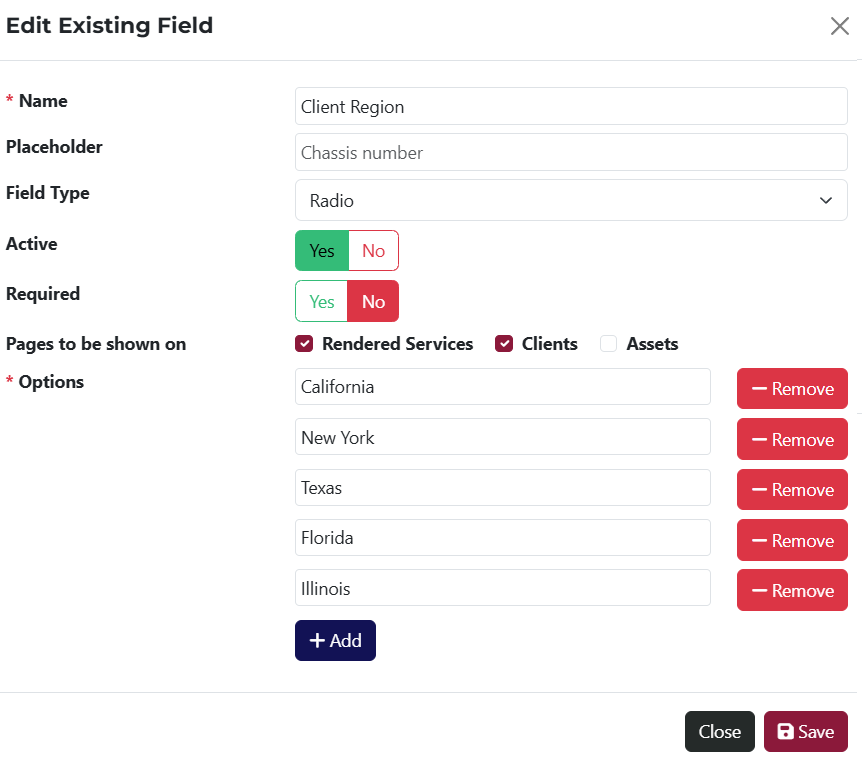
The popup includes:
- Name* – required field for the name of the custom field.
- Placeholder – short description or hint for the field.
- Field Type – required selection of the field type.
- Active – toggle whether the field is active or not.
- Required – toggle to mark the field as required.
- Pages To Be Shown On – select the pages where this field should be displayed.
Fields marked with an asterisk * are required.
Clicking the Edit button will open the same popup used for adding a field, but with the current field data pre-filled.
If you click Delete a confirmation popup will appear.
Deleting a field is an irreversible action! You will be asked to confirm that you truly want to delete the field and didn’t click the button by accident.
This page shows all modules in the system and allows you to control their visibility.
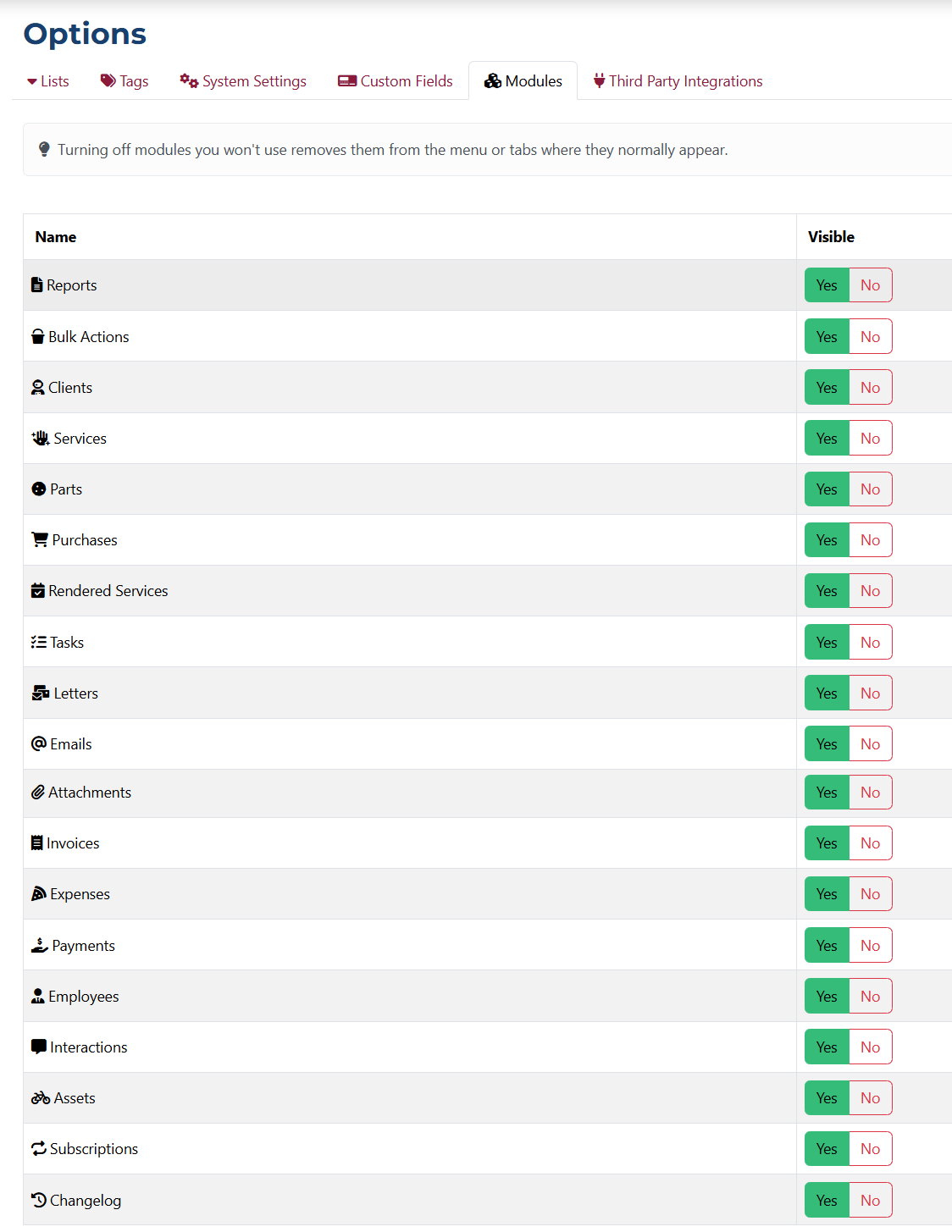
If you mark a module as hidden, it will not appear in the menu or on any page. Users will not have access to it or be able to use it.
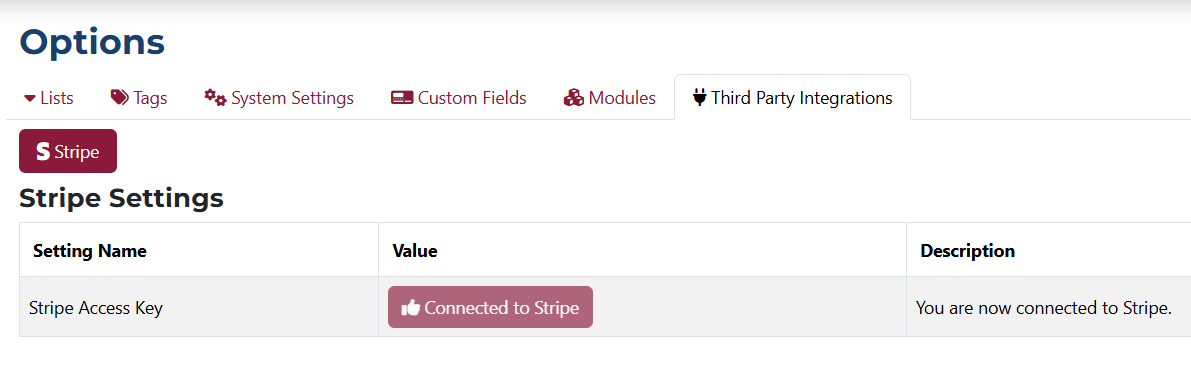
This section shows the status of the third-party payment system connected to the platform.