➕ Add
To access the add client page, click the Add Client button located on the Clients page.
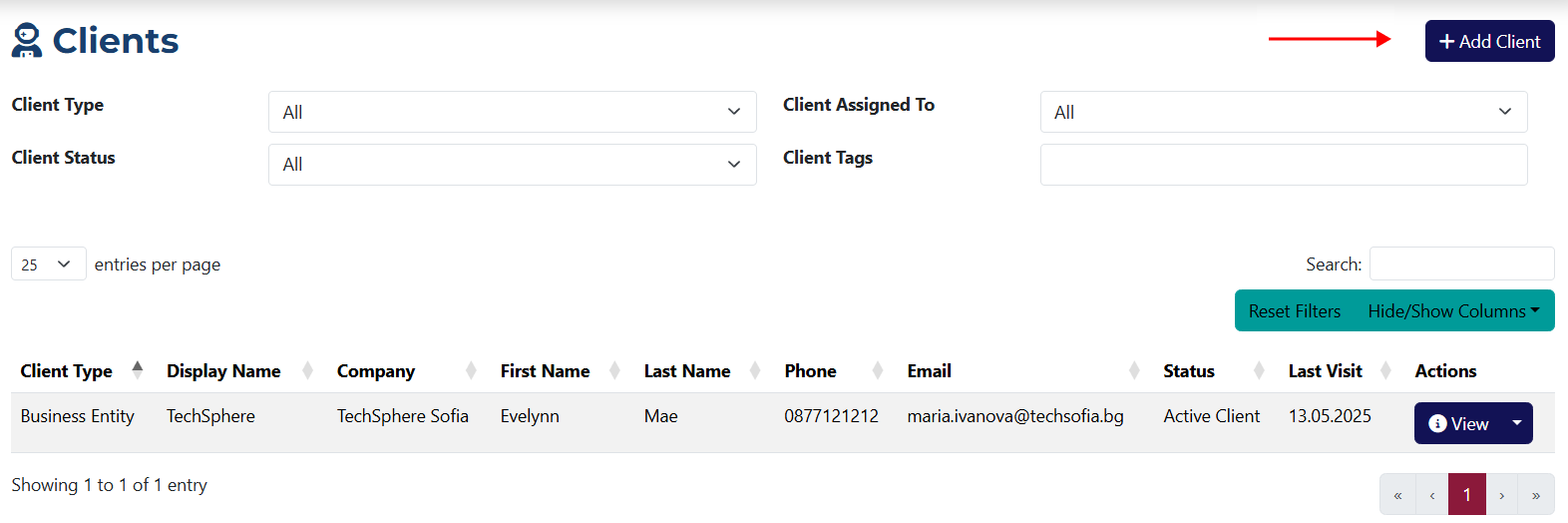
Add Client Form
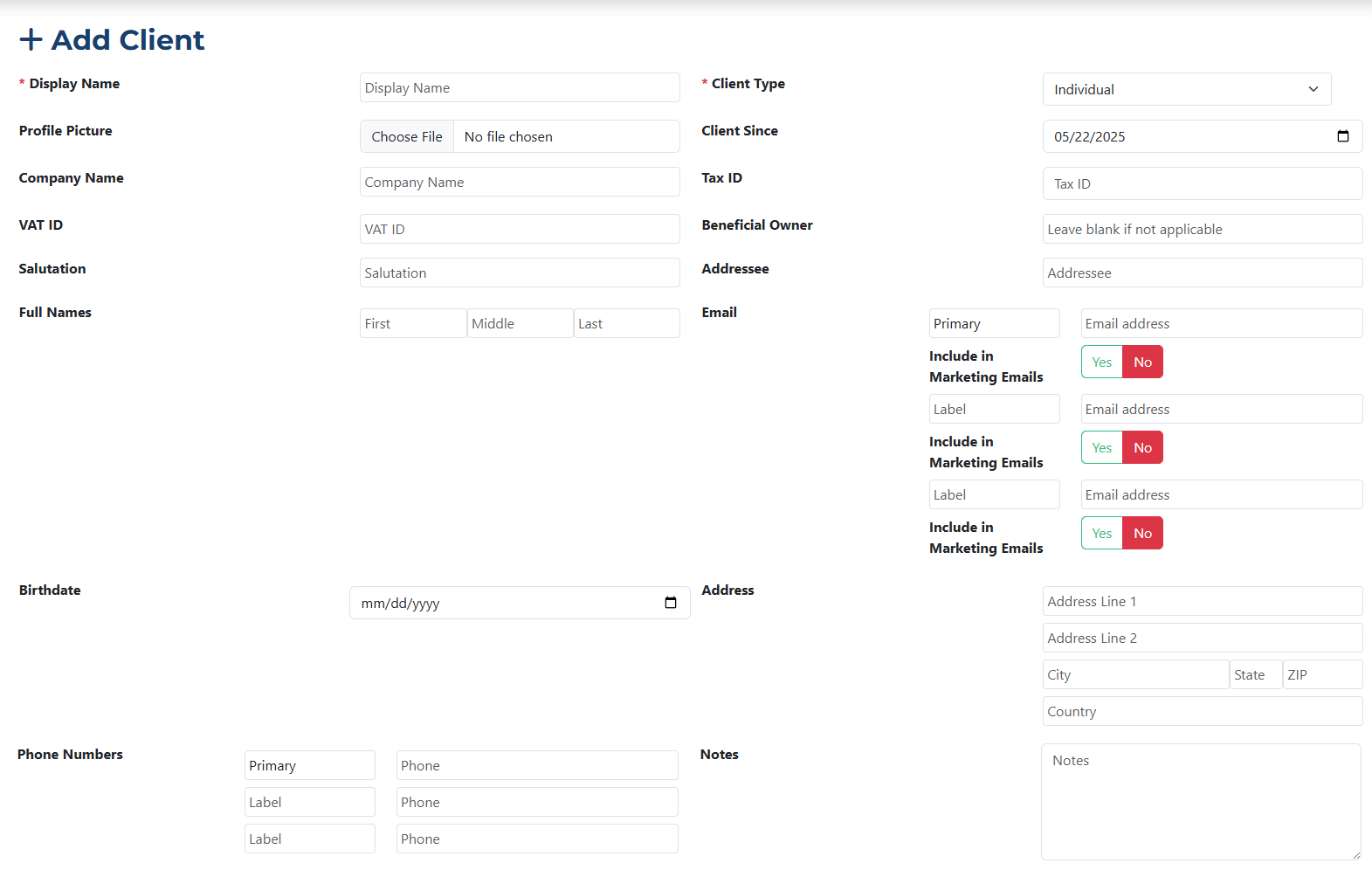
Fields marked with an asterisk * are required.
The client creation form includes the following fields:
- Display Name* – Here you must enter the client's name you wish to be displayed in the system.
- Profile Picture – Upload a profile photo (optional).
- Company Name – Enter the name of the client’s company.
- VAT ID – Provide the client's VAT identification number.
- Salutation – Add a personalized greeting for the client.
- Full Names – Enter the client’s first, middle, and last name.
- Client Type* – You must choose a client type from the dropdown menu.
- Client Since – Select the date when the client is added.
- Tax ID – Provide the unique tax identification number of the company or client.
- Beneficial Owner – Enter the name of the person responsible for company assets.
- Addressee – Specify the contact person for communications.
- Email – You can add up to 3 email addresses in the provided fields.
- Birthdate – Specify the client’s date of birth.
- Address – Two address fields are provided, along with fields for city, state, postal code, and country.
- Phone Numbers – Add up to 3 phone numbers and assign custom labels to each.
- Notes – Free-text field for any additional client information.
You can manage and edit Client Types from the System Settings.
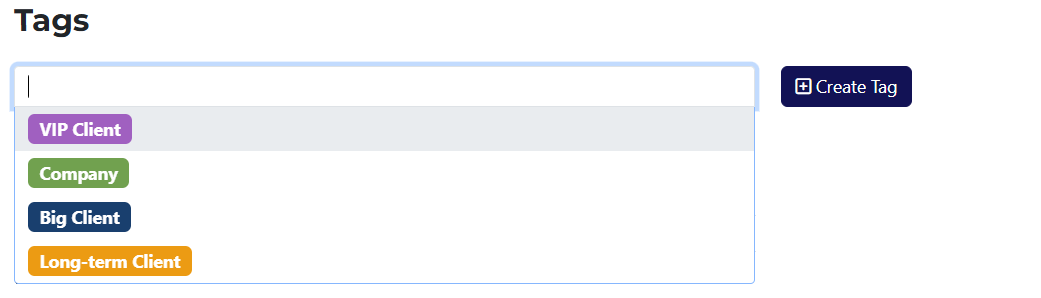
The Tags section is located in the middle of the page, just below the phone fields. Here, you can create new tags, and assign or remove existing ones simply by clicking on them.
You can edit or delete tags from the System Settings.

The Restrictions section includes the following fields:
Free-text fields:
- Best Time to Contact – Add the most appropriate time to reach the client.
- Preferred Contact Method – Specify how the client prefers to be contacted.
Radio button options:
- Do Not Call – Yes/No
- Do Not Email – Yes/No
- Do Not Mail – Yes/No
- Do Not Send Promotions – Yes/No

The Relationship section includes dropdown menus for:
- Source – Choose how the client found your company.
- Assigned To – Select the person responsible for managing the client.
- Status – Set the current client status.
Source and Status dropdown options can be created, edited, and removed from the System Settings.

This section contains the following fields:
- Gender – Enter the client's gender.
- Job Title – Specify the client’s job position.
- Pricing Tier – Select a predefined price group from the System Settings.
- Profession – Enter the client’s profession.
- Language* – You must choose a language from the dropdown menu.

All fields in this section are fully customizable.
You can add text fields, radio buttons, and dropdown menus via the System Settings. These fields can also be marked as mandatory, indicated by an asterisk * next to the field name.