👤 Users
This section displays information about users in the system and allows you to assign access levels by defining their roles.
- Users
- Roles
- Login History
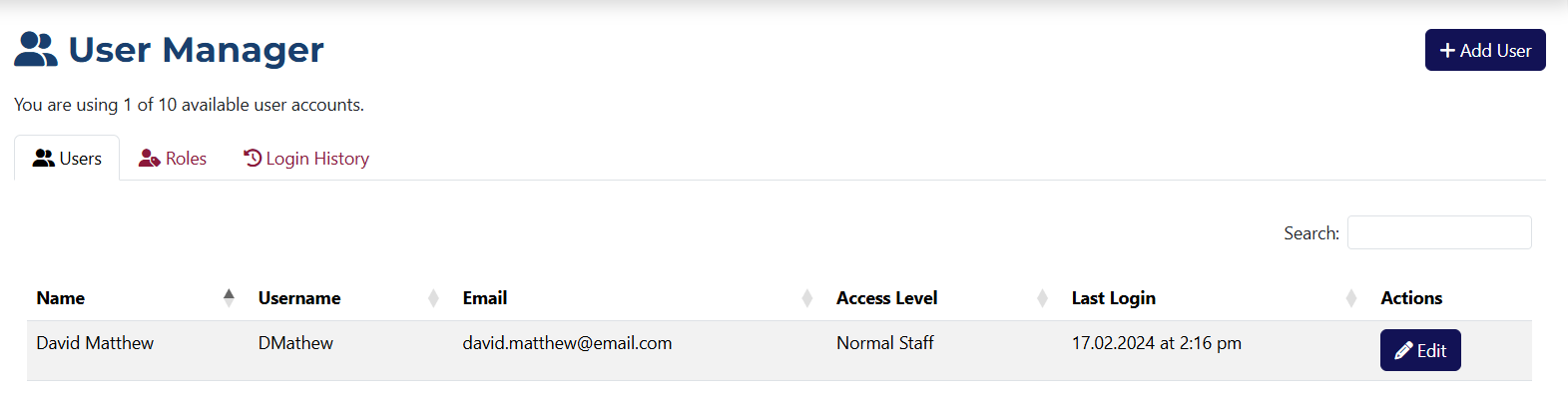
Here you can see a list of all users you've added to the system.
Adding a New User
To add a new user, click the Add User button in the top right corner of the page. You'll then be redirected to the add user page:
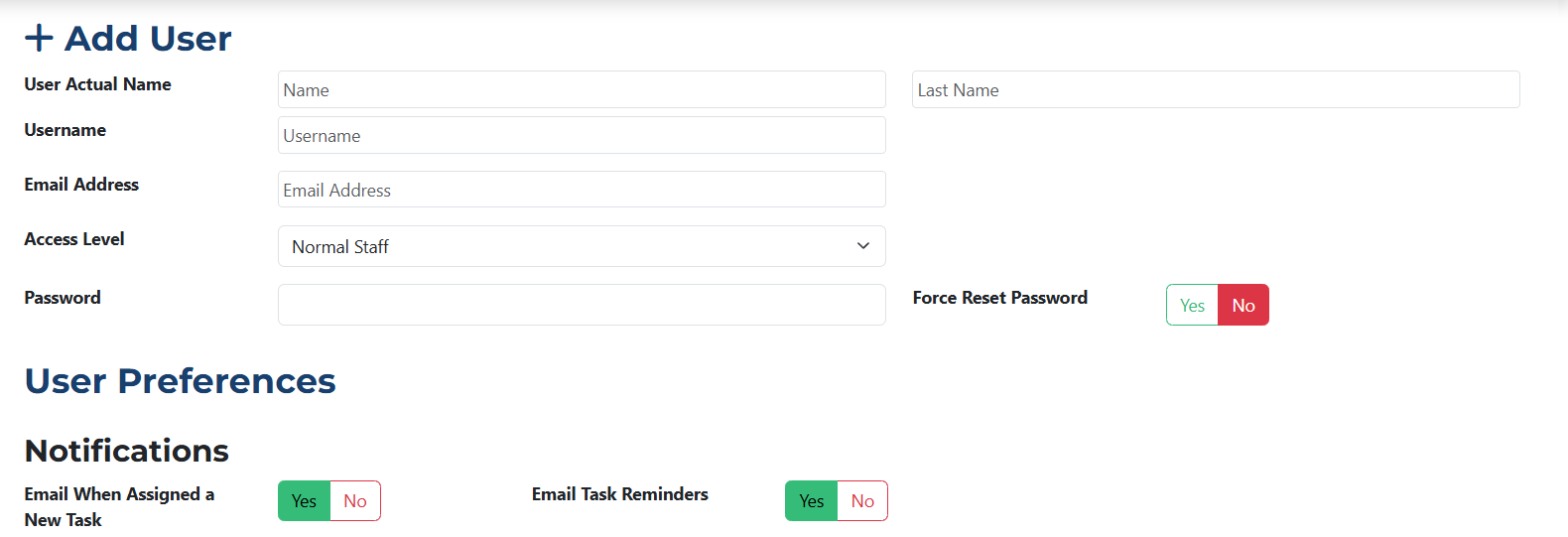
The edit user page is identical to the add user page. The only difference is that the fields are pre-filled with the current data, which you can modify.
This page includes the following sections:
- User Actual Name – set the user's full name here.
- Username – you must enter a username the user will use to log in.
- Email Address – you must enter an email, which can also be used to log in.
- Access Level – select the user’s access level from this dropdown. Note that each level has different permissions and restrictions.
- Password – you must enter a password the user will use to log in. It can be changed later by the user.
- Notifications – these are radio buttons that let you choose what types of notifications this user will receive.
User Permissions
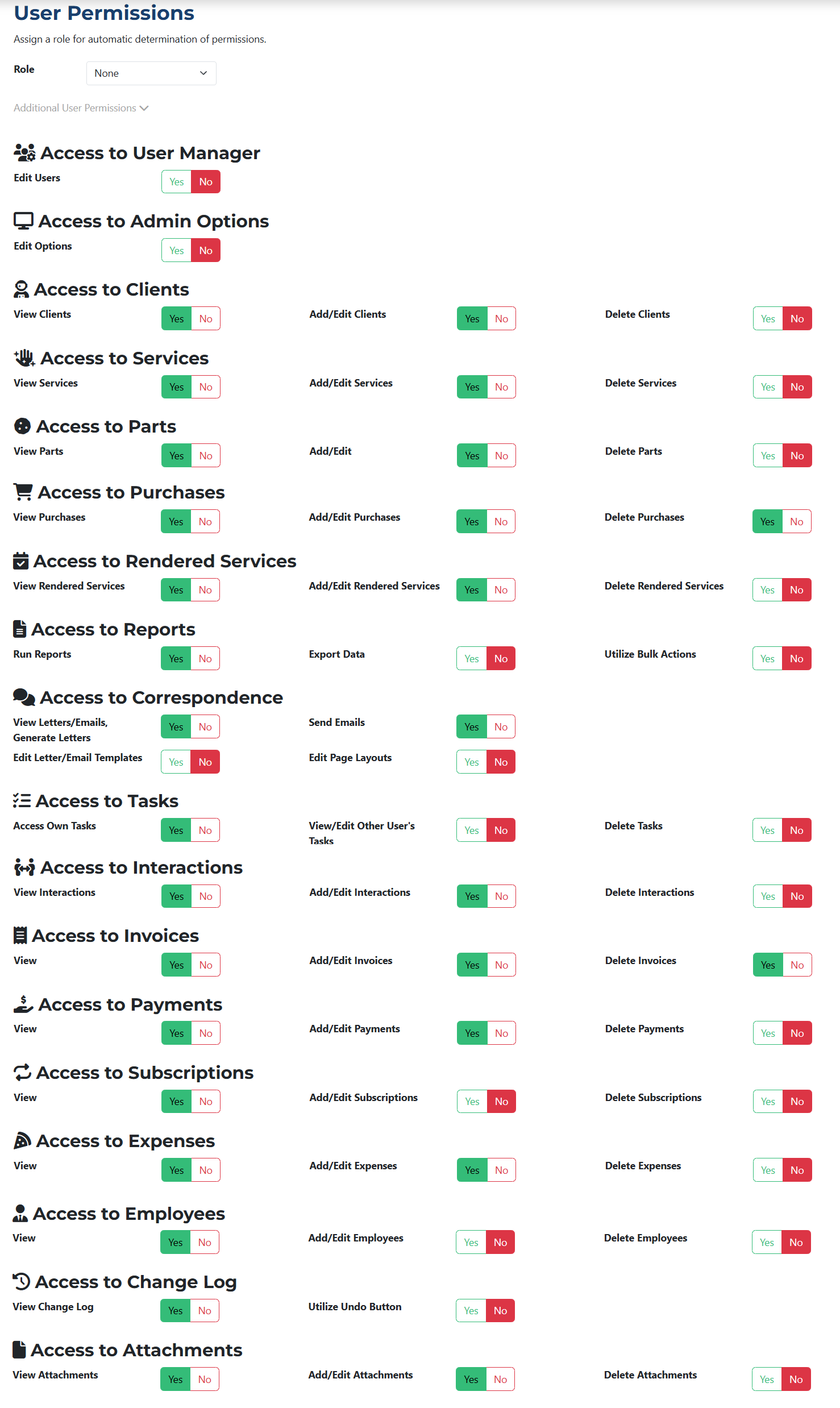
In the User Permissions section, you can define the permissions for this user. Every module in the system is listed here, and you can control access to view, add/edit, or delete. You can also select a pre-defined role from the Role dropdown menu.
The Services and Rendered Services modules are interconnected. If you deny access to the Services module, the user will also automatically lose access to the Rendered Services module.
Roles are predefined access levels that can be assigned to users. Each role has its own set of permissions and restrictions, which you can modify at any time. After being created, you will be able to select a role on the Add User page.
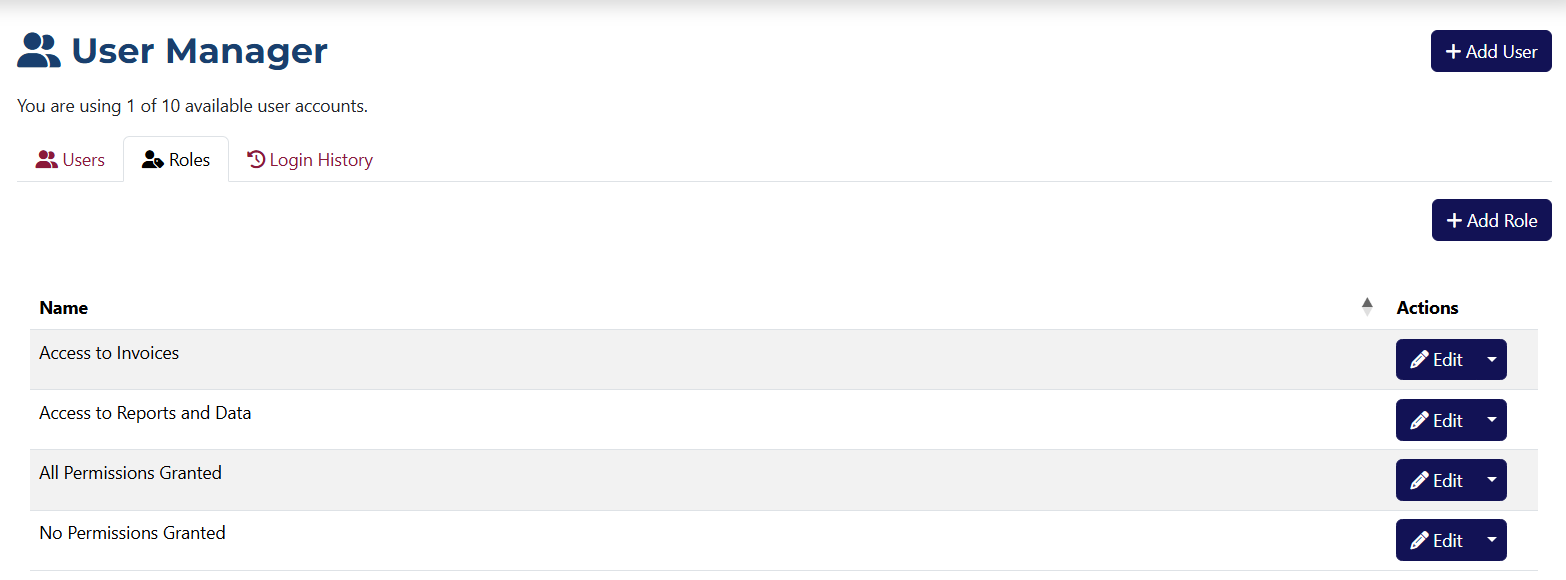
To add a new role, click on the button Add Role 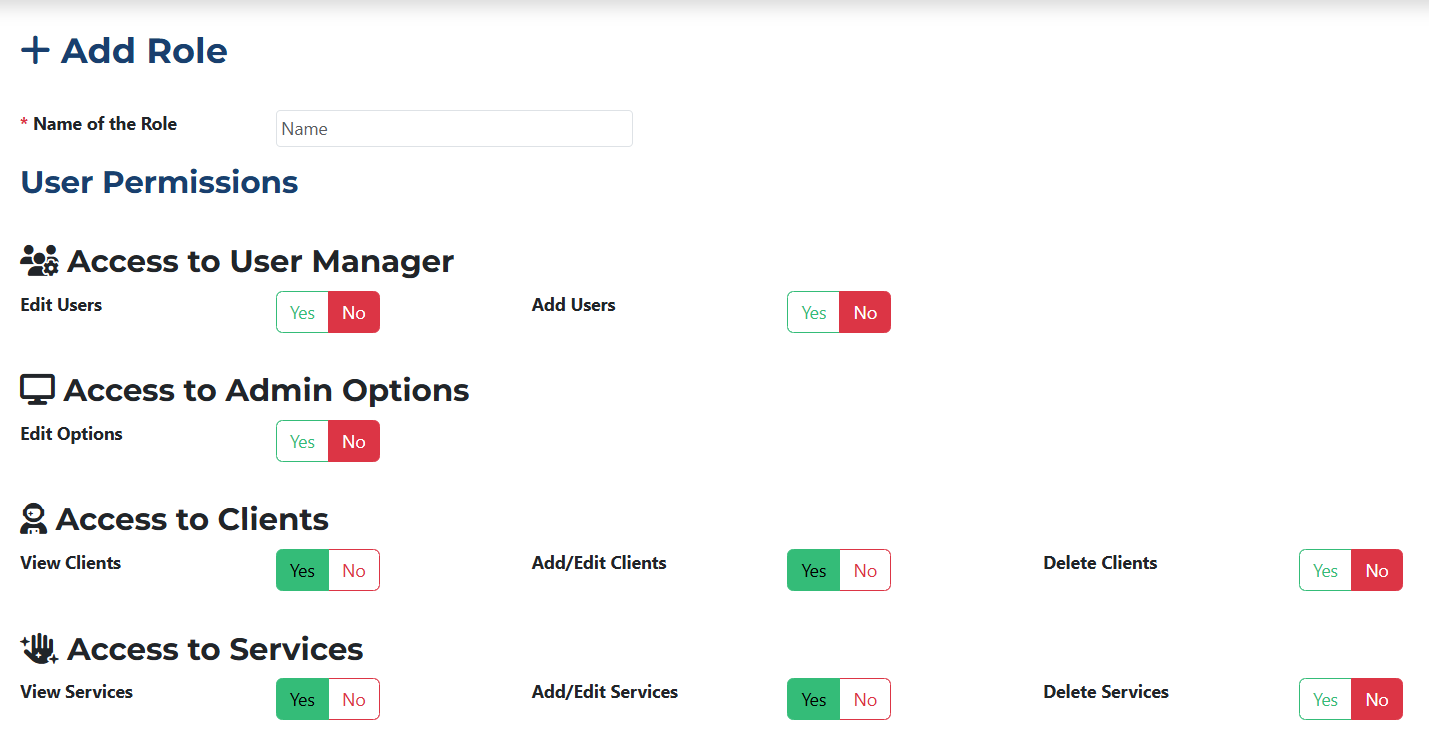 and you’ll be redirected to the role creation page.
All roles shown on the Add Role page are also available when adding a user, as seen in the previous tab.
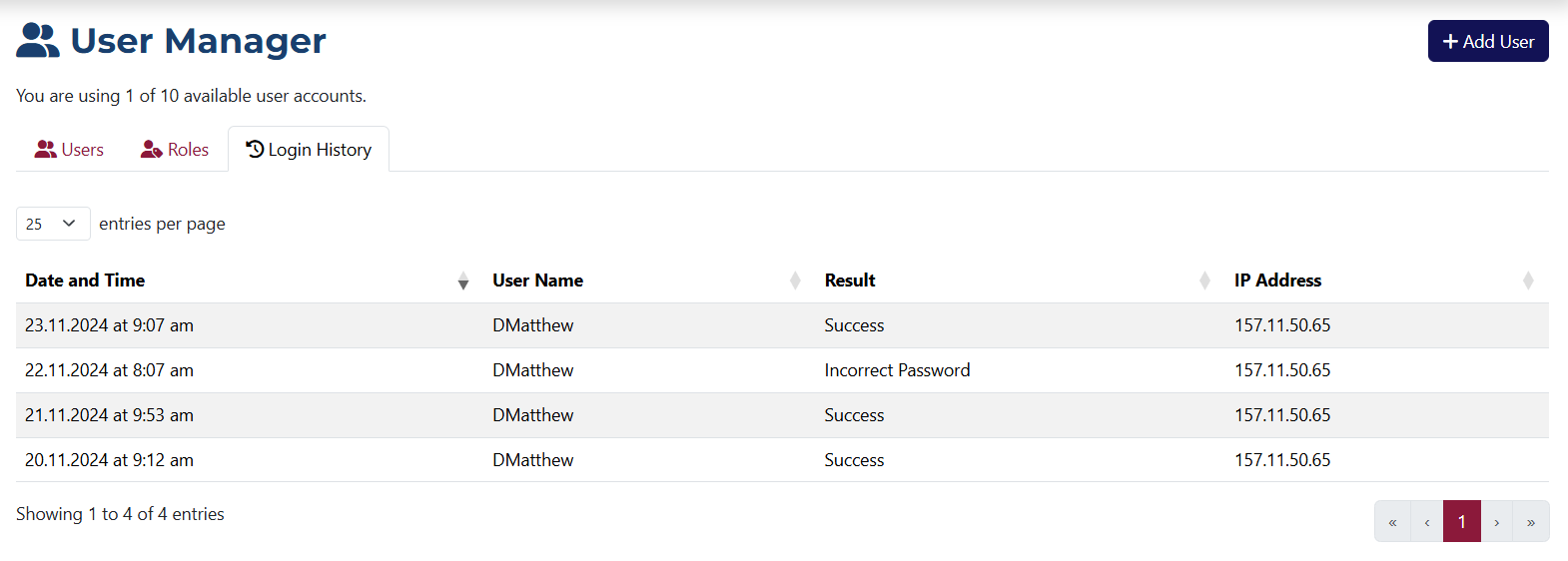
This page displays the login history of users in the system. You can view the exact login time, IP address, and email address used during login.