Report – Rendered Service History
This report provides a complete timeline of all rendered services. Use the available filters to easily search by period, client, status, and other criteria, so you can get precise and detailed information tailored to your needs.
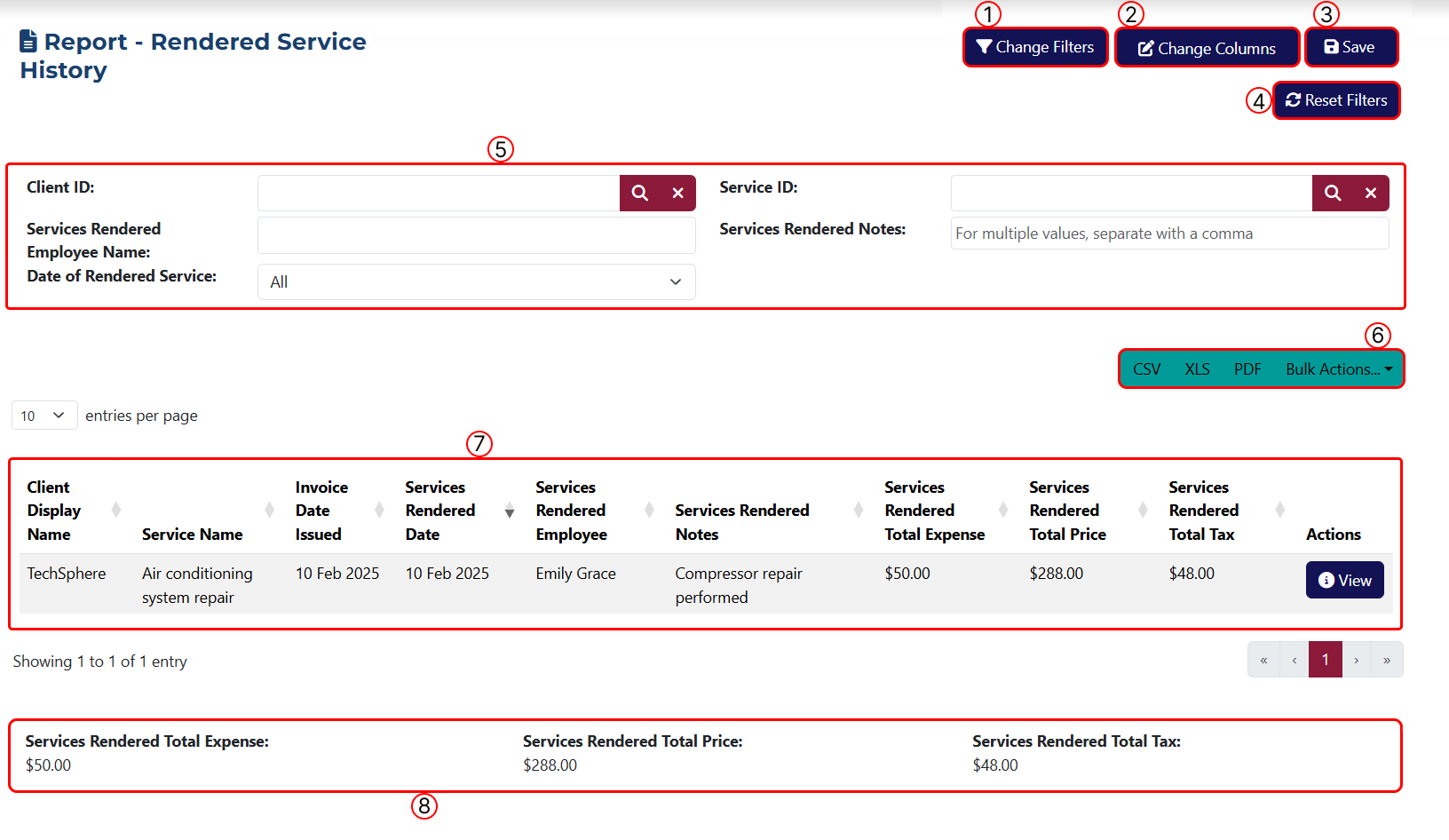
1 Use this button to choose the filters you'd like to apply. Clicking it opens a popup window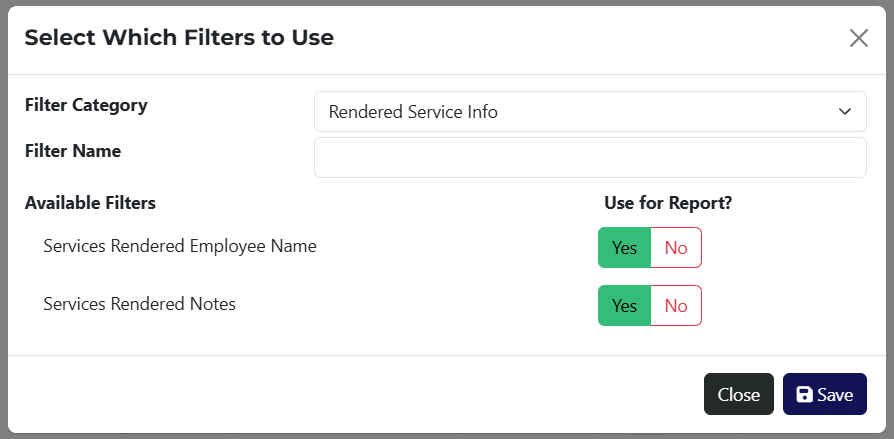 where you can select the desired filters.
For convenience, the Filter Category dropdown displays a list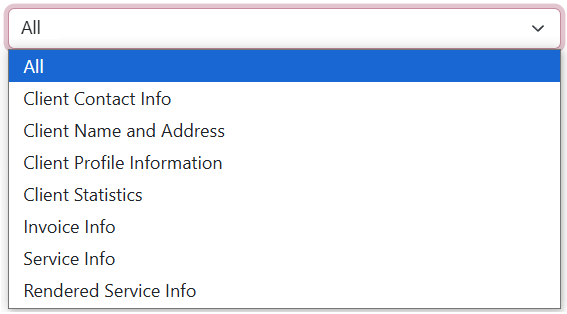 of all available filter groupings. You can search by keyword in the Name field or select All to browse every option.
2 This button allows you to customize the table columns. A popup window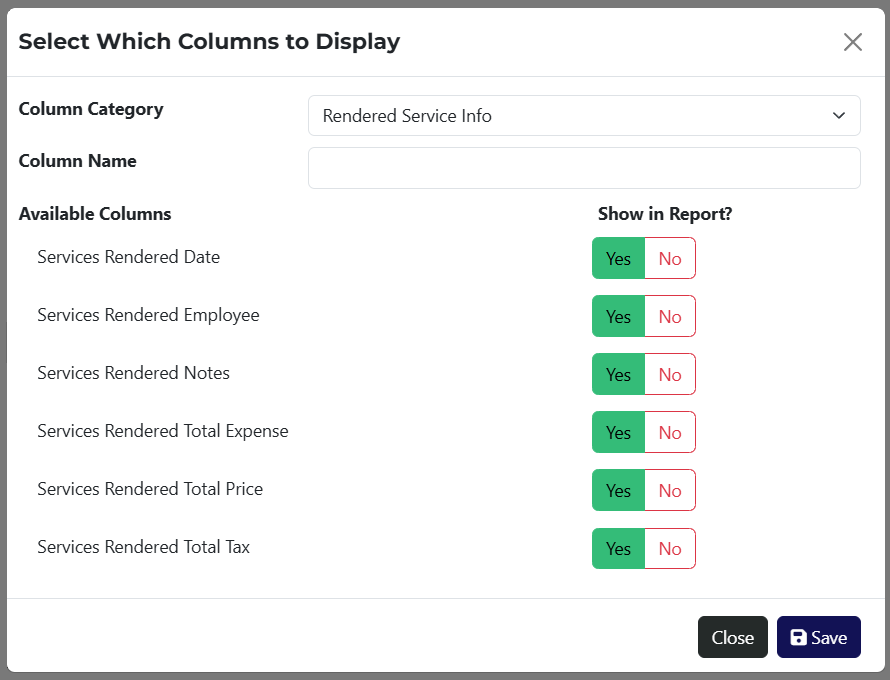 lets you select which columns to show. The columns are organized by categories, and you can search for a column using a keyword.
3 You can click this button to save the report. A popup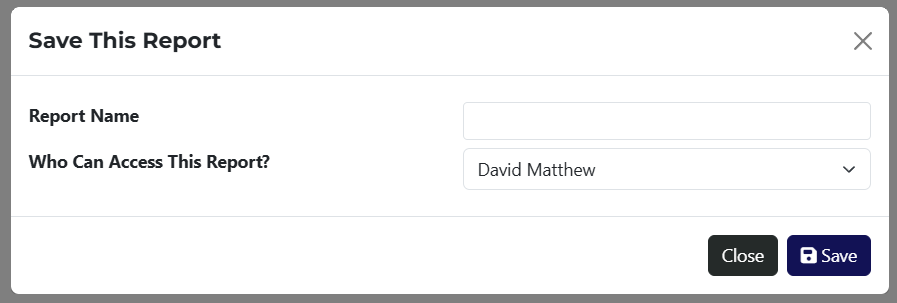 will appear where you can assign visibility to a specific employee.
4 Use this button to clear all applied filters.
5 Displays all selected filter criteria applied in step 1.
6 Here you can export the report in CSV, XLS, or PDF format. The Bulk Actions dropdown provides access to applicable actions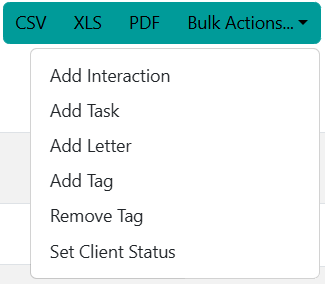 that can be applied to all filtered results.
7 The table displays all results, before or after filters are applied.
8 This section summarizes key financial values for the provided services – total cost, total amount, and total VAT.
If the report has been saved, it will be accessible via a link on the Reports page.