Report – Payment History
Here you can view the complete history of all processed payments. Use the available filters to search by different criteria and generate accurate, detailed reports based on your needs.
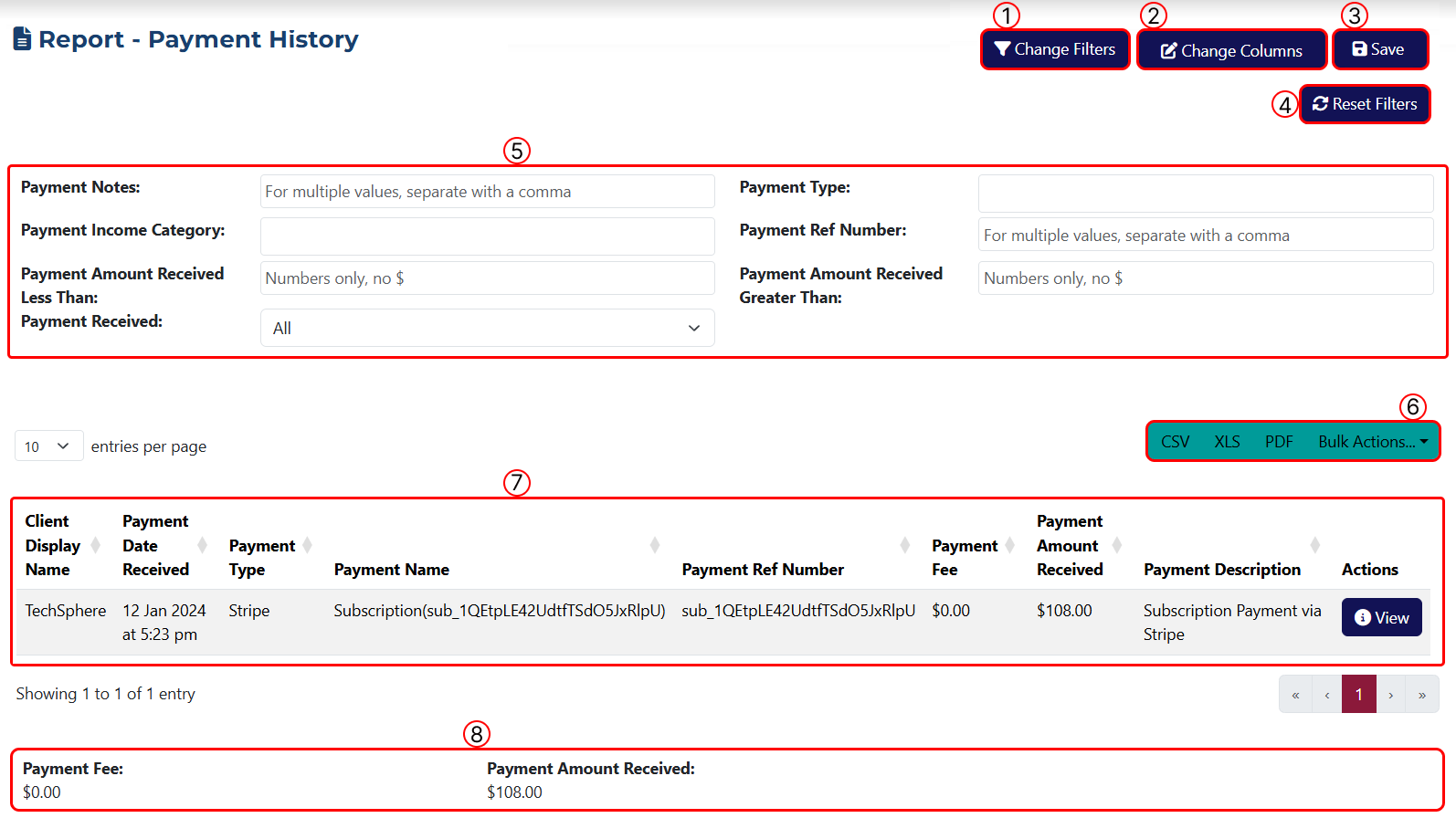
This page includes the following elements:
1 Use this button to define the filters you want to apply. Clicking it will open a popup window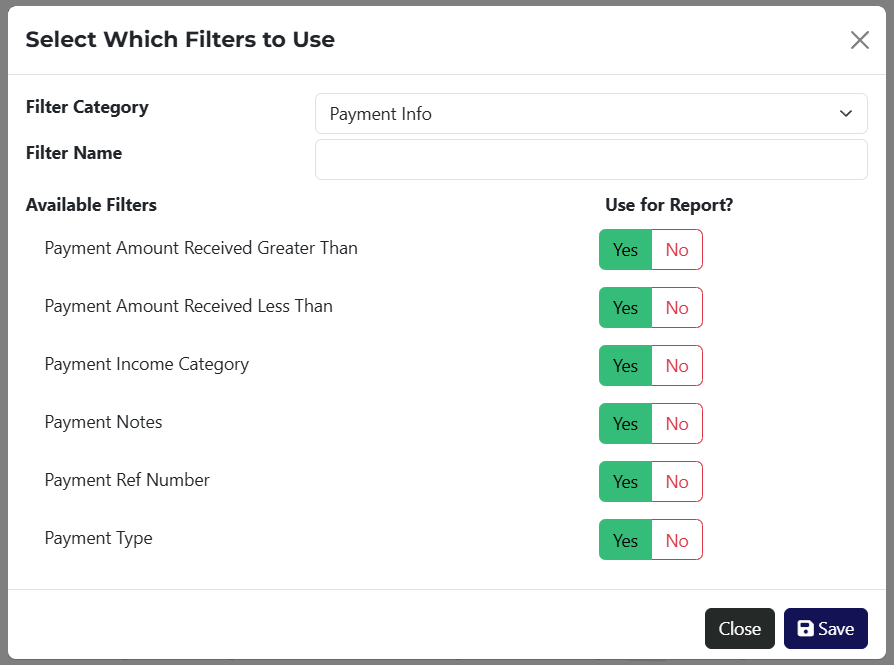 where you can choose which filters to add.
For your convenience, the Filter Category dropdown shows a list of available filter groupings. You can search by keyword in the Name field or view all options by selecting All.
2 This button lets you modify the table columns. A popup window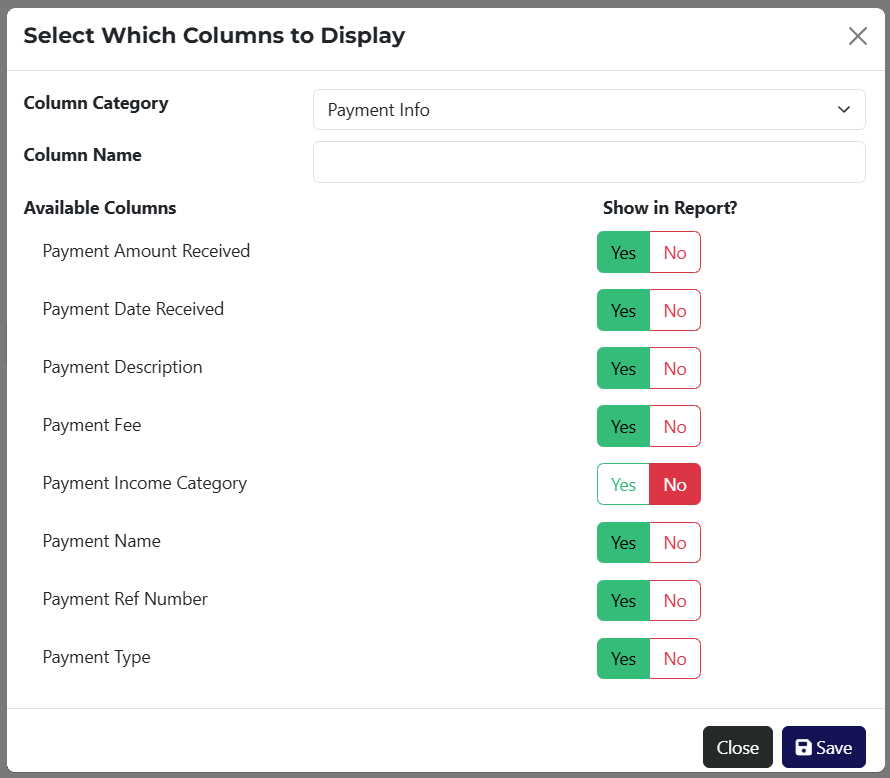 will appear where you can choose which columns to display. Columns are also grouped by categories, and you can search for a specific column using a keyword.
3 Use this button to save the report. After clicking it, a popup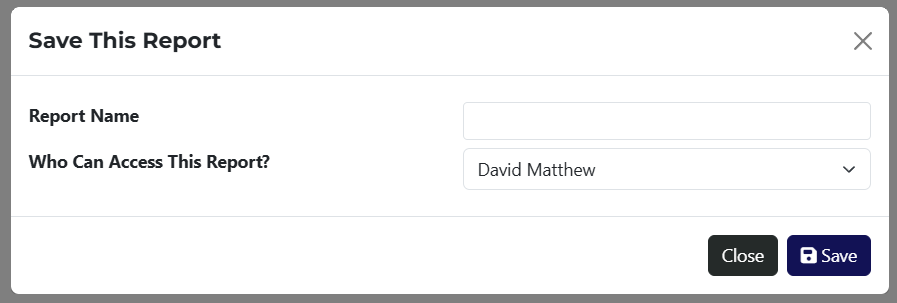 will open where you can assign visibility of the report to a specific employee.
4 Button to clear all applied filters.
5 Displays all selected filter options set in step 1.
6 Use this button to export the report in CSV, XLS, or PDF format. The Bulk Actions dropdown provides access to relevant options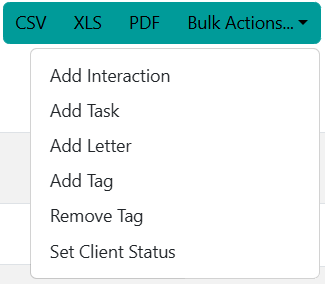 that can be applied to all filtered results.
7 A table displaying all results, before or after applying filters.
8 This section displays key financial figures for each invoice – total amount, amount received, and outstanding amount.
If the report has been saved, it will be accessible via a link on the Reports page.