Report – Unpaid Invoices
This page allows you to review all invoices with outstanding payments. Use the available filters to search by client, period, status, and more, making it easy to find exactly what you need.
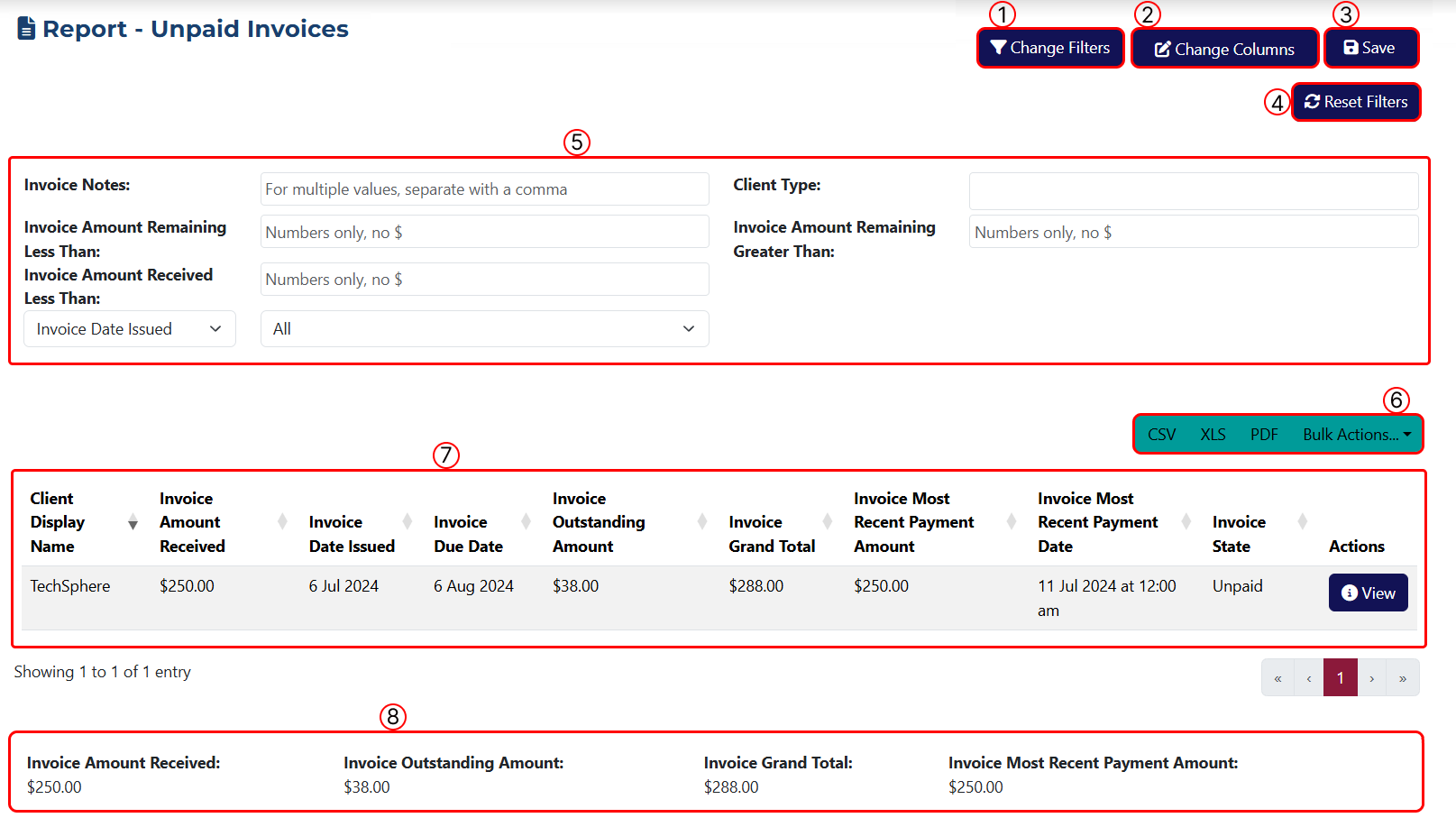
This page includes the following features:
1 Use this button to apply filters to your report. Clicking it opens a popup window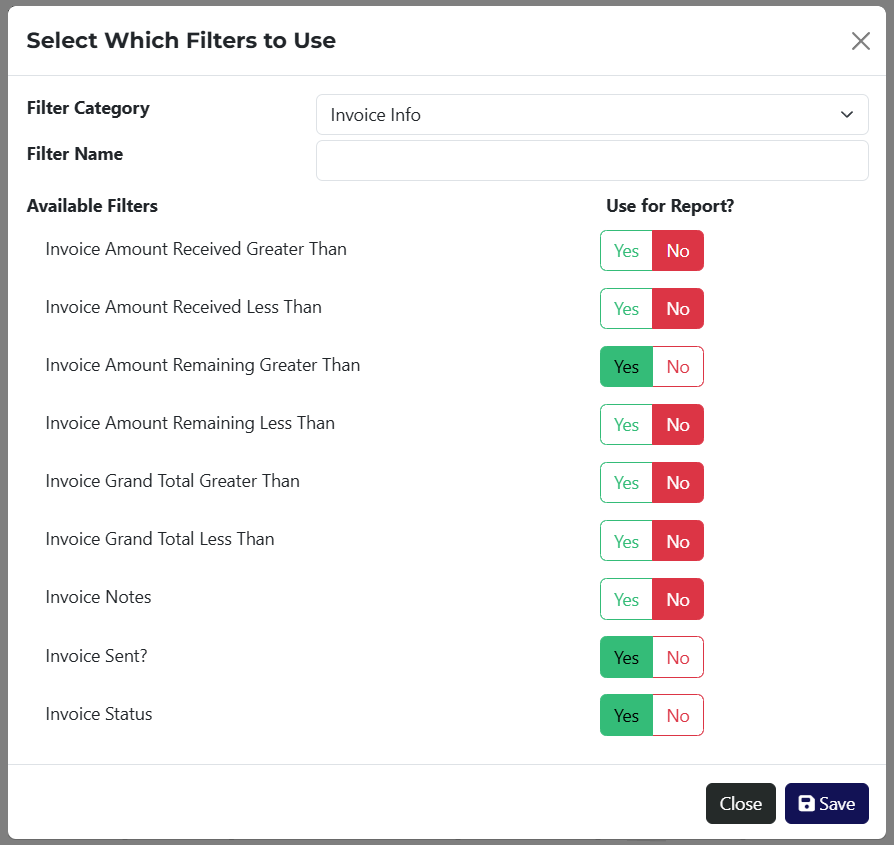 where you can choose which filters to enable.
To make things easier, the Filter Category dropdown shows a list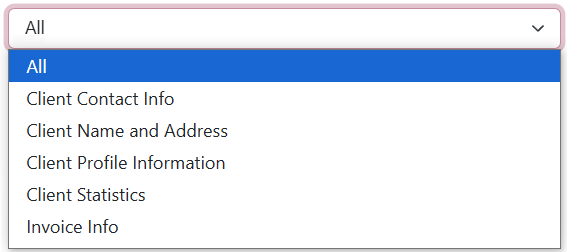 of available filtering options. You can search by keyword in the Name field, or select All to view every available option.
2 This button lets you customize the visible columns in the table. A popup window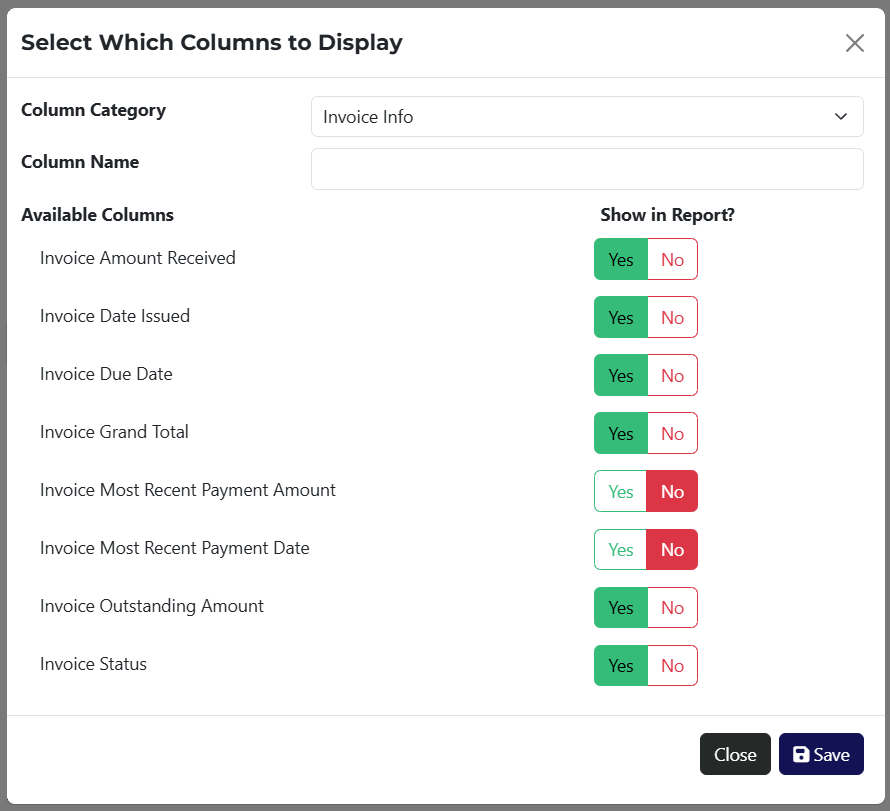 will appear, where you can select columns, categorized and searchable by keyword.
The Remaining Amount column is required for this report, since it specifically focuses on unpaid invoices.
3 Use this button to save your report. A popup window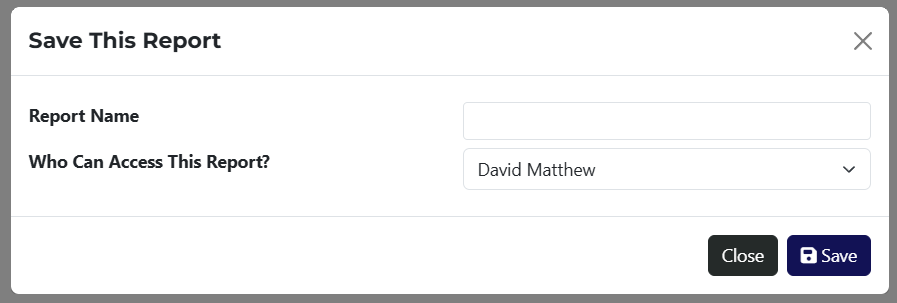 will appear, allowing you to assign visibility to specific employees.
4 Button to clear all currently applied filters.
5 Displays a summary of all active filters selected in step 1.
6 Here, you can export the report in CSV, XLS, or PDF format. The Bulk Actions dropdown gives you access to actions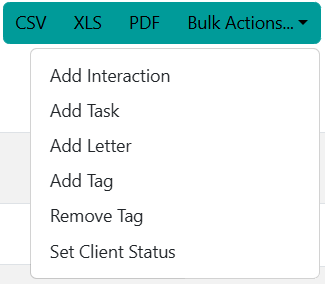 that can be applied to all filtered results.
7 This table displays the results, either before or after filters are applied.
8 This section summarizes key financial figures for each invoice—total, received, and outstanding amounts.
If a report has been saved, you can access it via a link on the Reports page.