Report – Expense History
Here you can track the full history of recorded expenses. Use the available filters to search by different parameters and generate a detailed report tailored to your specific needs.
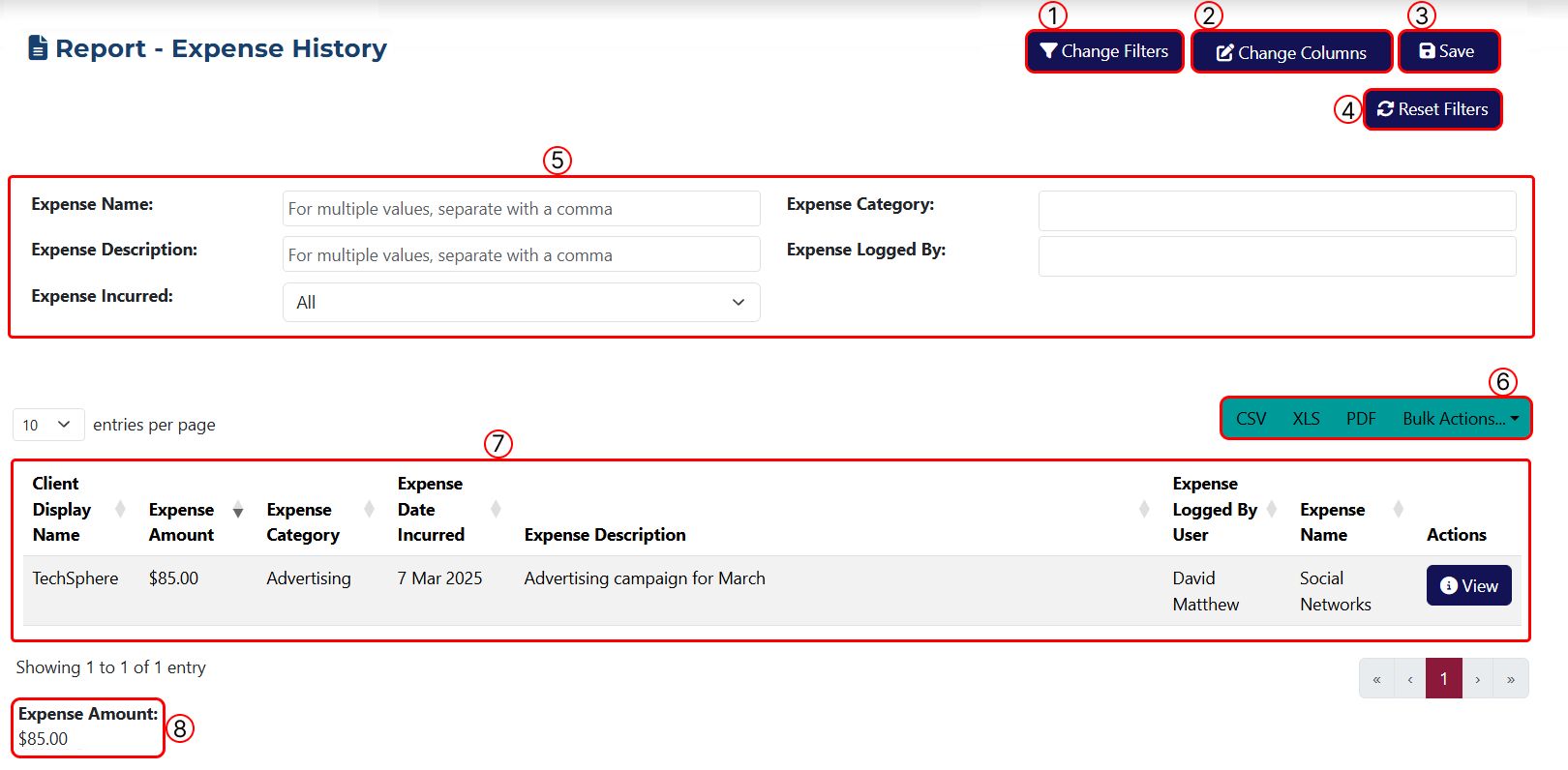
This page includes the following elements:
1 Use this button to define the filters you want to apply on this page. After clicking it, a popup window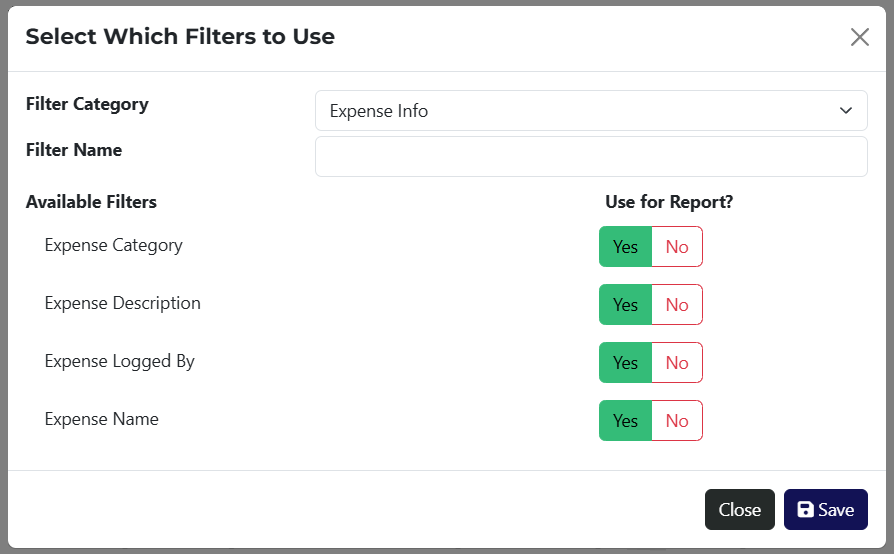 will appear, allowing you to choose the filters to include.
For your convenience, the Filter Category dropdown shows a list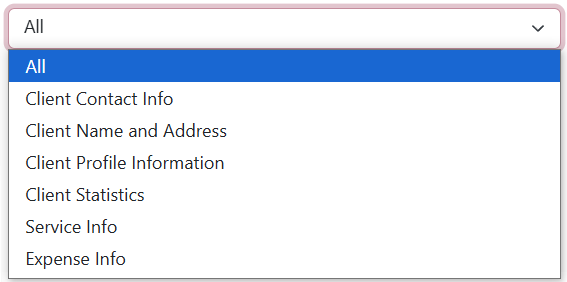 of available filtering categories. You can search by keyword in the Name field or view all options by selecting All.
2 Use this button to customize the table columns. A popup window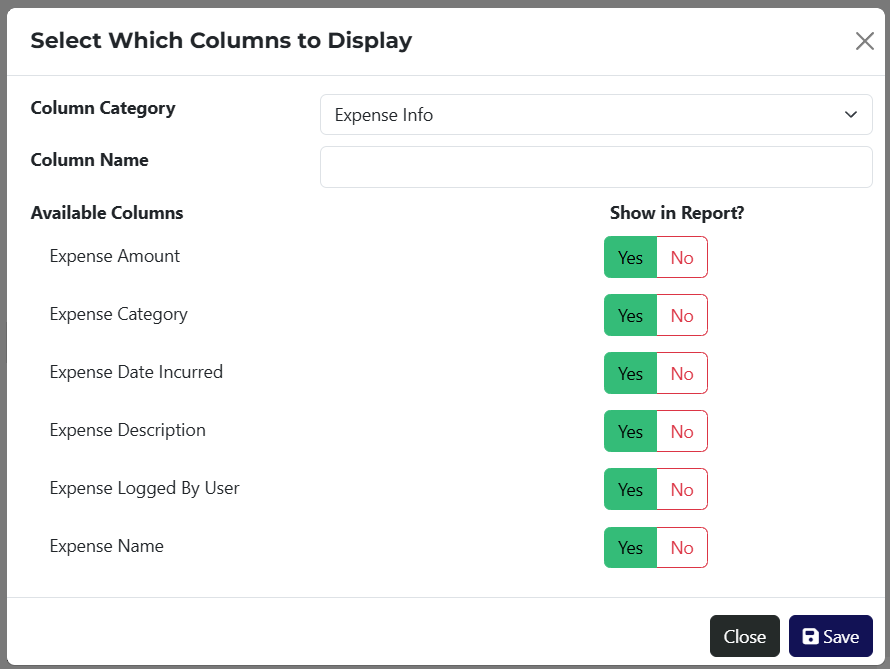 will open, where you can choose which columns to display. Columns are also grouped by categories, with a keyword search option.
3 Use this button to save the report. After clicking it, a popup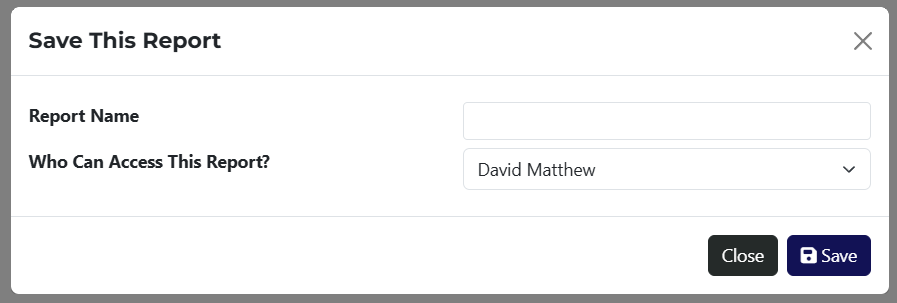 will open where you can assign a user who will have access to view the saved report.
4 Button to clear all applied filters.
5 Displays all selected filtering options from step 1.
6 Use this section to export the report in CSV, XLS, or PDF format. The Bulk Actions dropdown provides access to relevant options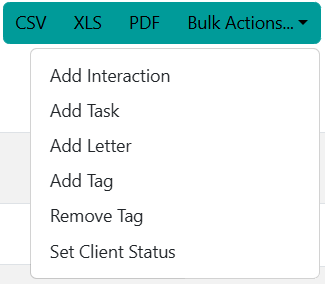 for performing actions on all filtered results.
7 A table showing all results, before or after applying filters.
8 Displays the total amount of expenses.
If the report has been saved, it will be accessible via a link on the Reports page.