Report – Emails by Date Sent
Here you’ll find a full report of all sent emails, sorted by their send date. Using the flexible filters, you can easily browse the data by various parameters and get accurate, relevant information tailored to your needs.
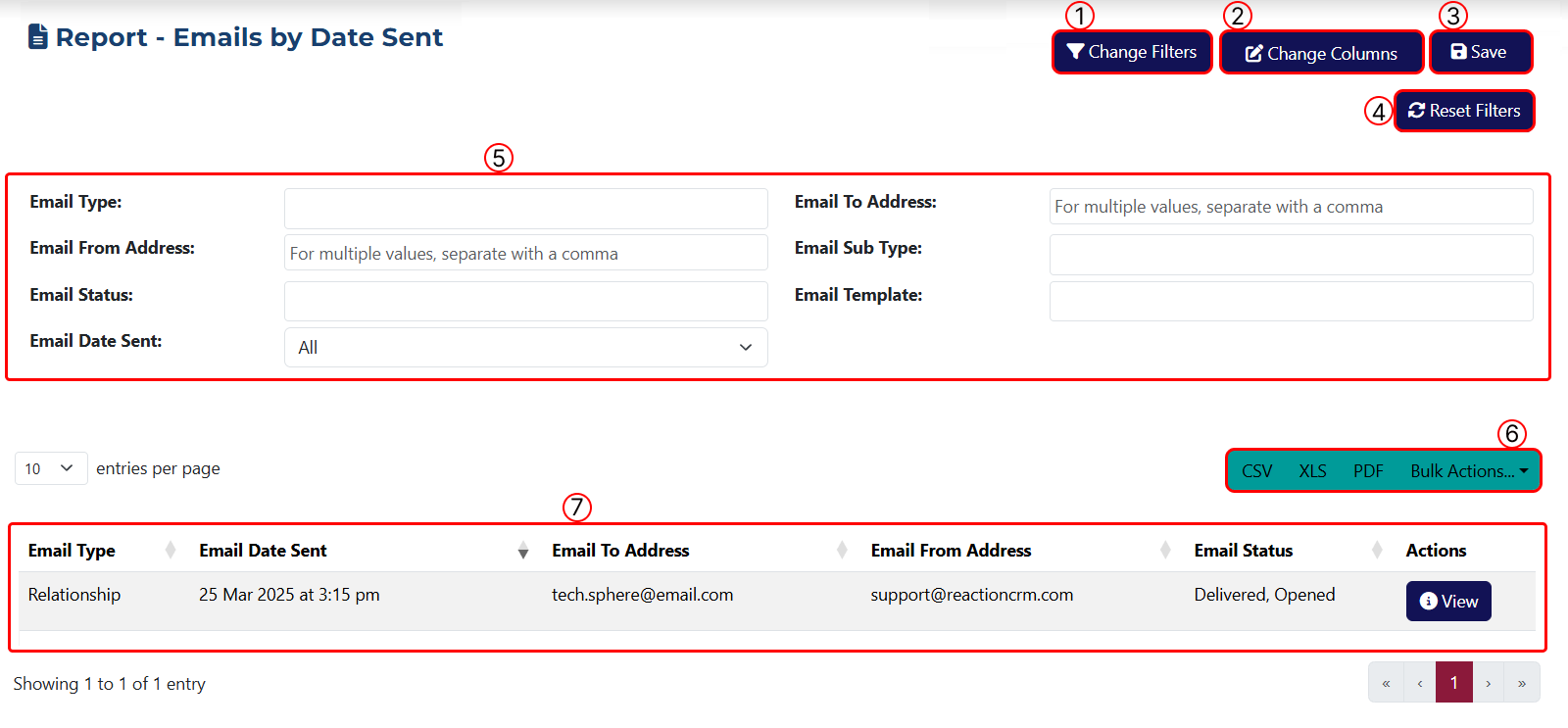
This page includes the following elements:
1 Use this button to configure which filters should be available on this page. Once clicked, a popup window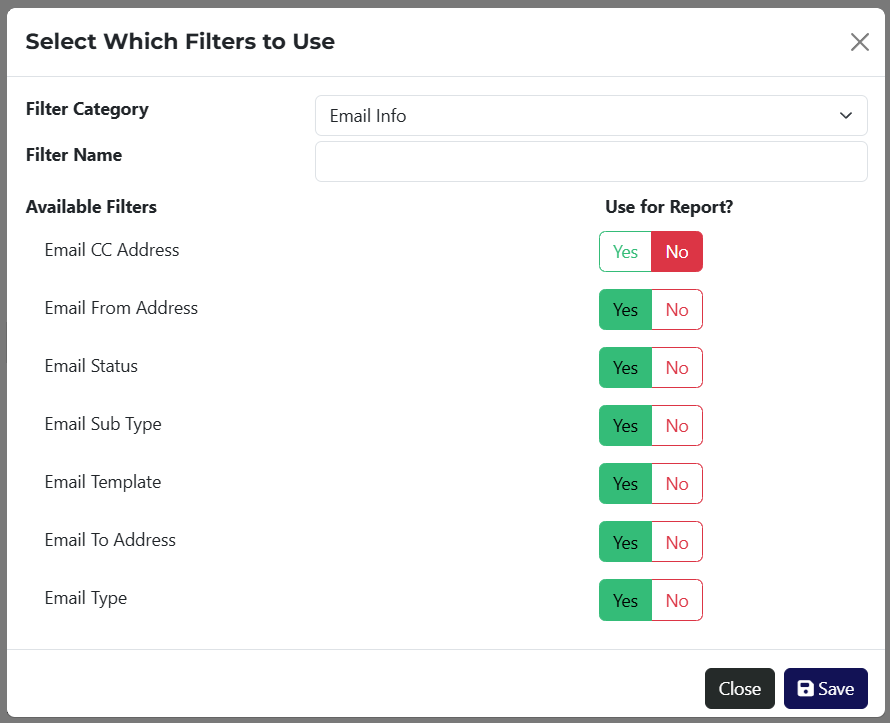 will appear where you can choose the filters to add.
For your convenience, the Filter Category dropdown will display a list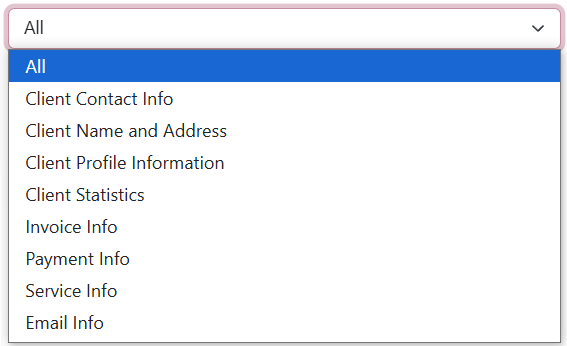 of the available filter categories. You can search by keyword in the Name field or select All to view every option.
2 This button allows you to customize the table columns. A popup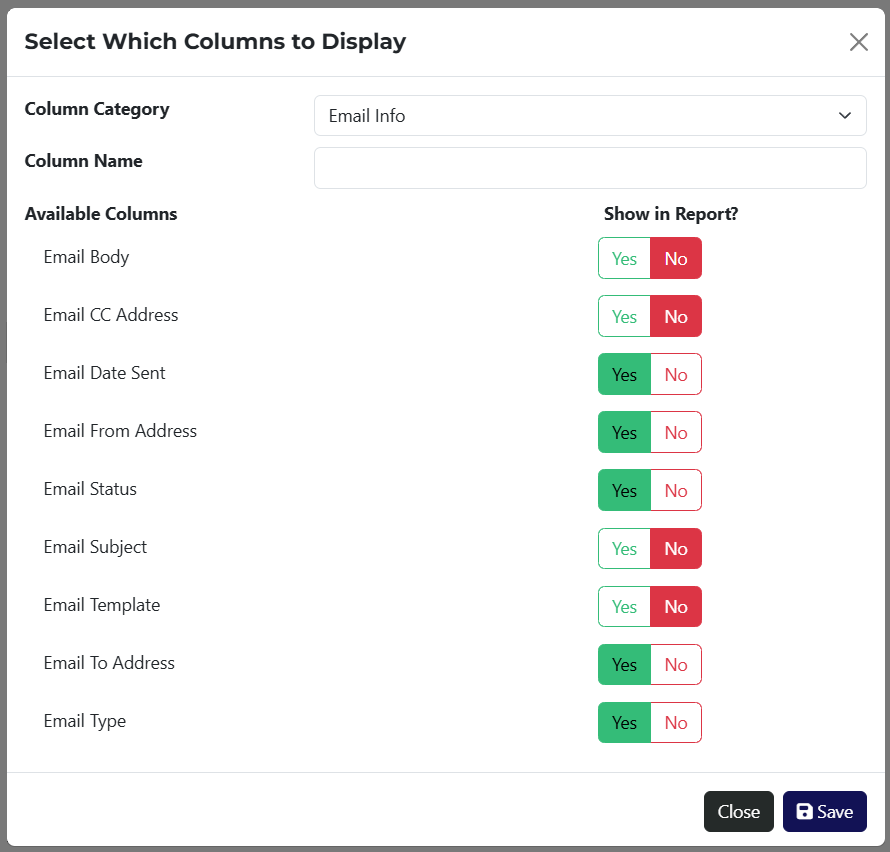 will open where you can choose which columns to display. Columns are grouped by category, and there’s a keyword search feature as well.
3 Use this button to save the report. After clicking it, a popup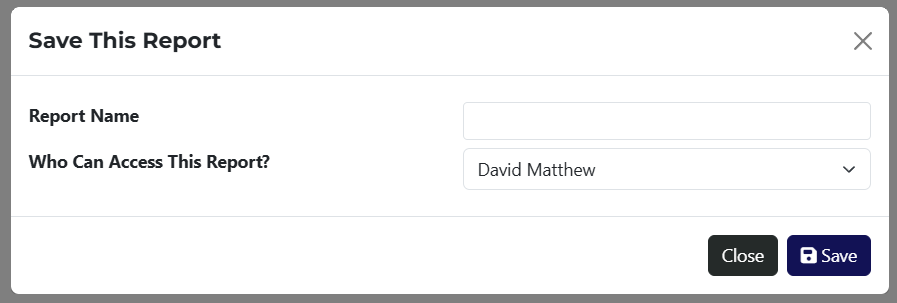 will appear where you can assign an employee who will have access to view the saved report.
4 Button to clear all applied filters.
5 Here you can see all filter options selected in step 1.
6 Use this option to export the report in CSV, XLS, or PDF format. The Bulk Actions dropdown provides access to available actions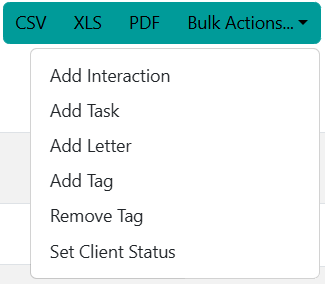 that can be performed on all filtered results.
7 A table displaying all results, either before or after filters are applied.
If a report has been saved, it will be accessible via a link on the Reports page.