Report - Client List
This page generates a list of all clients in the system. Using the available filters, you can view, sort, and analyze clients by various criteria such as status, category, location, and more.
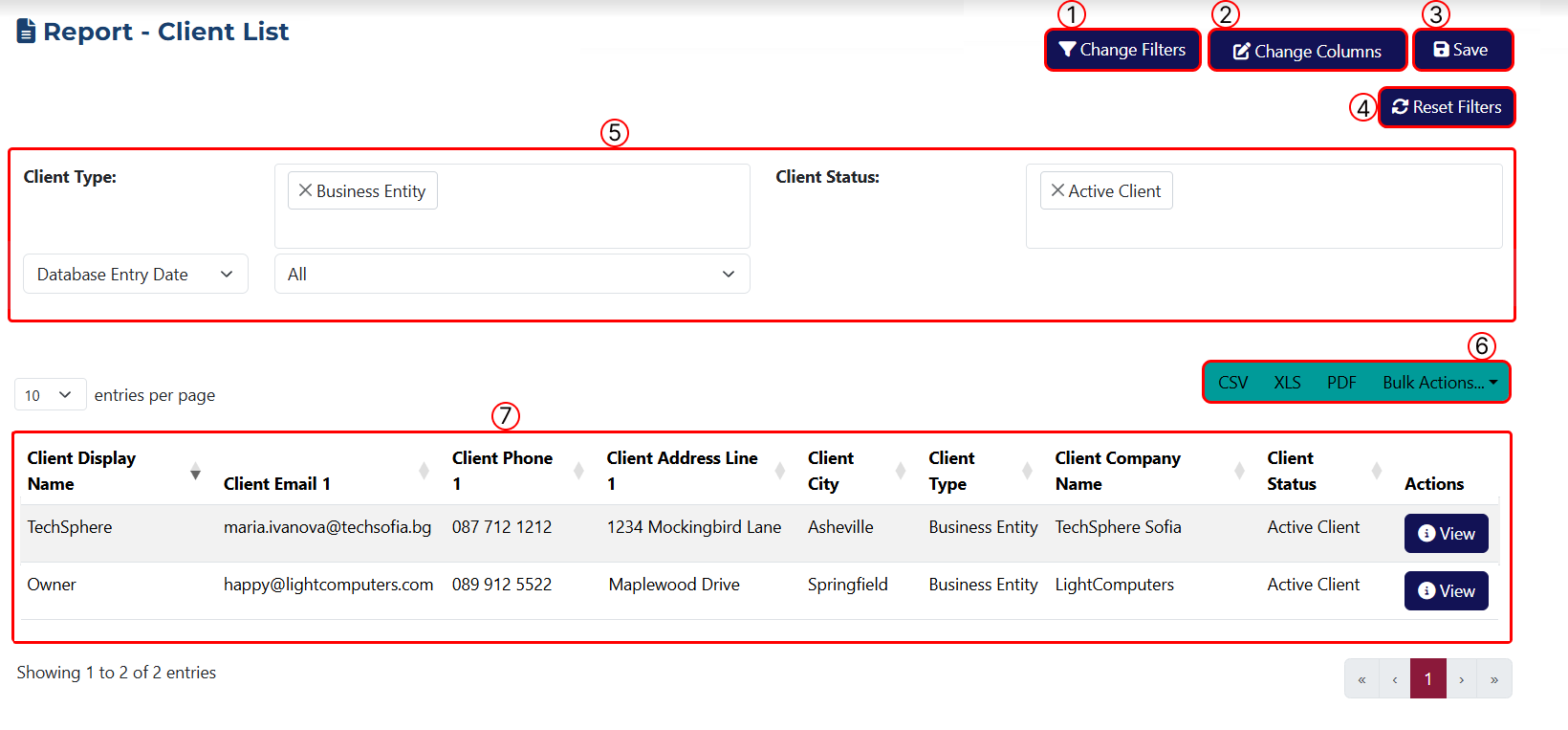
This page includes the following elements:
1 Use this button to set the filters that will be applicable on this page. Once you click this button, a popup window will appear, allowing you to select which specific filters you want to add from the displayed popup window .
.
For your convenience, the Filter Category dropdown shows a list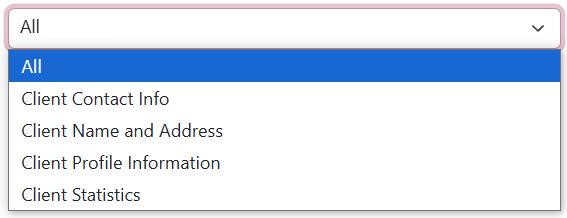 of different filter options grouped by category. You can search by keyword in the Name field or view all options by selecting All.
2 Use this button to modify the table columns. A popup window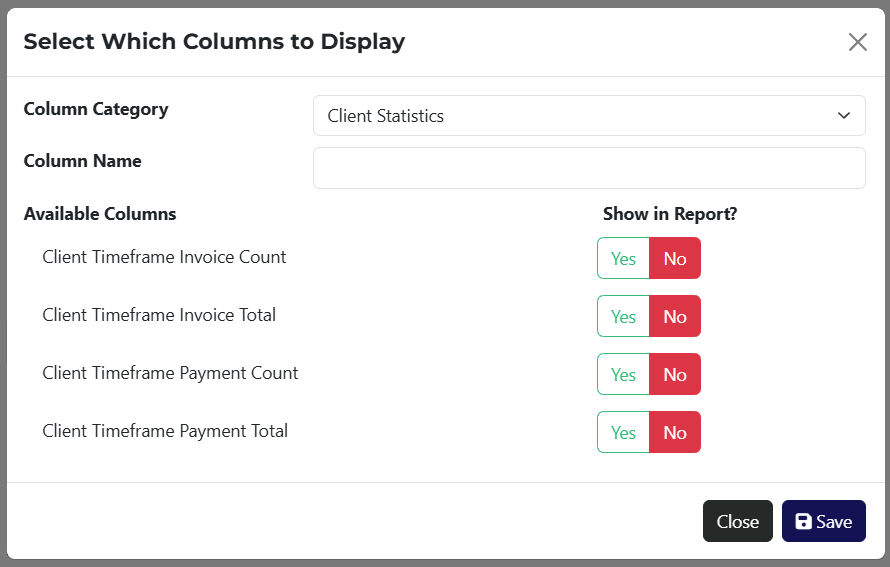 will appear, allowing you to choose which columns to show. Columns are also organized by category, with a keyword search option to find specific columns.
3 This button lets you save the report. After clicking, you'll see a popup window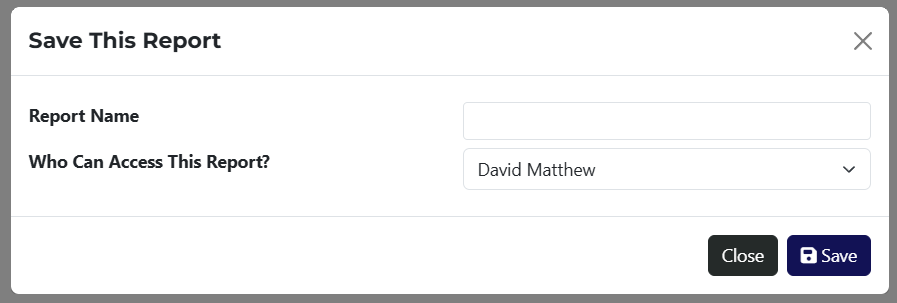 where you can assign an employee who will have access to view it.
4 Button to clear all applied filters.
5 Here you can see all the filtering options you have applied from step 1.
6 From here, you can export the report in CSV, XLS, or PDF formats. The Bulk Actions dropdown gives you access to applicable options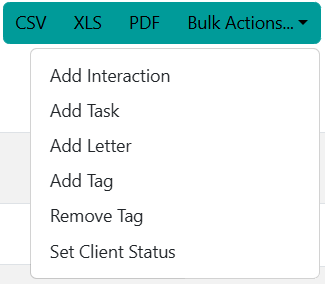 to perform actions on all filtered results.
7 A table displaying all results before or after applying filters.
If a saved report exists, it can be accessed via a link on the Reports page.